
Tyche Booking: WhatsApp Confirmations and Reminders
Send booking confirmations and reminders for date and time-slot appointments and events booked with the Tyche Softwares plugin.
 WALoops team
calendar_month
schedule4 min read
In this guide
- WALoops shows three WhatsApp booking switches when Booking & Appointment Plugin for WooCommerce is active.
- Use them for date and time-slot appointments and events. Start and end values come from the booked order item.
- The confirmation goes after booking, the start reminder one day before, and the end reminder three hours before the end.
- All switches start OFF. Turn on the messages you want under Messages, then save.
When someone books a time slot, the important question is simple: what date and time did I choose? A confirmation in email can be hard to find later, especially when the booking is for a consultation, lesson or event. A WhatsApp message puts the selected schedule in a conversation the customer can revisit before leaving home or joining online.
Why WhatsApp for Tyche date and time-slot bookings?
Booking & Appointment Plugin for WooCommerce by Tyche Softwares supports date and time-slot bookings, appointments and events. A customer may reserve a particular appointment slot, sign up for an event, or book a scheduled session. Those are not necessarily full-day reservations. The date and time are the useful details to make clear in a confirmation and reminder.
The free WordPress plugin “WALoops Order Notifications, COD Verification & Abandoned Cart for WooCommerce”, version 1.0.9 or newer, connects to WALoops. When Tyche's booking plugin is active, three switches appear under Messages. The message reads the start and end date and time straight from the booking on each WooCommerce order item. Dates and times use the store's own time zone.
All three switches are off until the store turns them on. That means you choose whether customers get only the confirmation or also the two timed reminders. The messages are service updates for a booking the customer already placed. They are not marketing. Customers can reply STOP. Messages are sent from the WALoops WhatsApp number at first, or the store's own WhatsApp Business number after it is connected. Replies reach the WALoops Inbox.
What the three messages do
The confirmation follows the booking placement. The first reminder is scheduled against the booking start, and the last reminder is scheduled against its end. These timing rules apply whether the item is a one-to-one appointment, a class slot or an event reservation.
| Message | When it is sent | What it shows |
|---|---|---|
| Booking Confirmation | Right after a booking is placed | What was booked, start and end, and payment details |
| Booking Reminder | 1 day before the booking starts | What was booked, start time, and any amount still to pay |
| Booking End Reminder | 3 hours before the booking ends | What was booked and its end time |
A booking might display “Fri 12 Dec, 2:00 PM” for a specific appointment slot. All-day bookings show only the date, for example “Sat 20 Dec 2026”. If the customer books less than one day before the start, the start reminder is skipped. The confirmation can still arrive immediately after booking.
Sample WhatsApp messages for a time slot
These examples use a 45-minute appointment. An event or another time-slot booking can use its own booking description while keeping the message focused on the confirmed date, start and end.
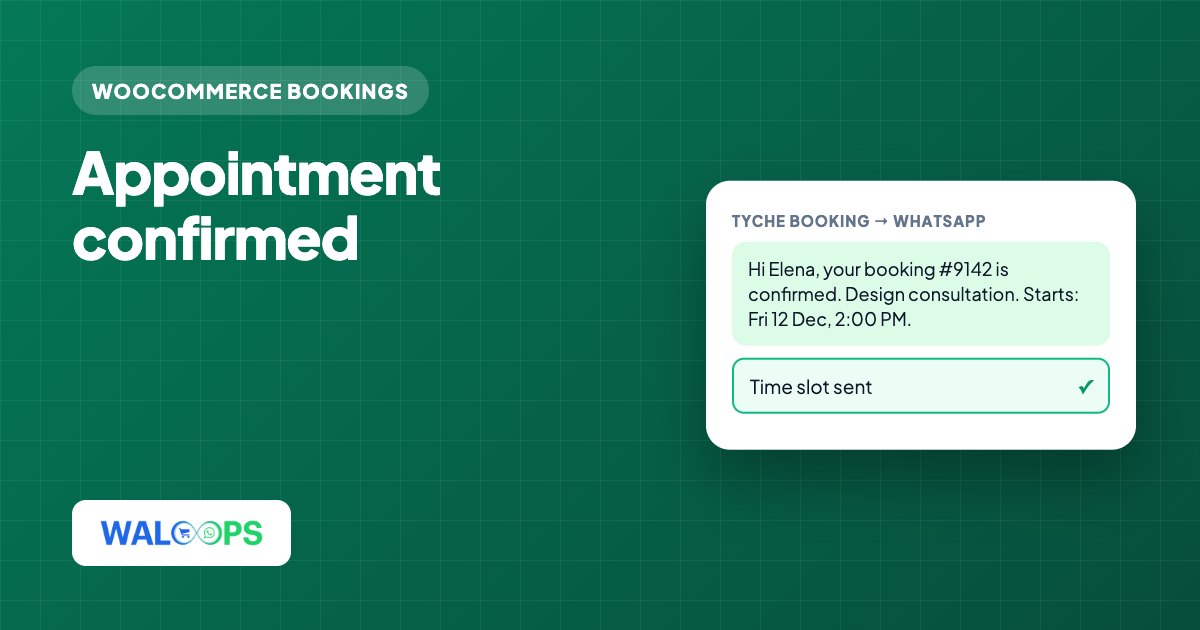
Hi Elena, your booking #9142 is confirmed.
45-minute design consultation
Starts: Fri 12 Dec, 2:00 PM
Ends: Fri 12 Dec, 2:45 PM
Payment: $200.00 paid in full
Reply to this message if you need any help with your booking.
Hi Elena, this is a reminder for your booking #9142.
45-minute design consultation
Starts: Fri 12 Dec, 2:00 PM
Payment: Fully paid
Please reply to this message if your plans change.
Hi Elena, your booking #9142 ends soon.
45-minute design consultation
Ends: Fri 12 Dec, 2:45 PM
Thank you for booking with us. Reply to this message if you need more time.
Deposit payments and appointment confirmations
The integration works with WooCommerce Deposits. If the booking order is Partially Paid, the customer still receives the confirmation. It can say “$50.00 paid, $150.00 still to pay”. If the customer paid the full amount, the message can say “$200.00 paid in full”. The reminder shows the amount still to pay, along with the appointment or event start time.
This is useful when the customer paid a booking deposit but still needs to know the exact appointment slot. The message keeps the schedule and payment status together, without adding marketing content.
Set up Tyche booking notifications in five steps
Install WALoops Order Notifications, COD Verification & Abandoned Cart for WooCommerce, version 1.0.9 or newer. Connect the store to WALoops and then use the booking switches that appear for the active Tyche plugin.
- Add the plugin. In WordPress admin, go to Plugins → Add New, search “WALoops Order Notifications”, then choose Install and Activate.
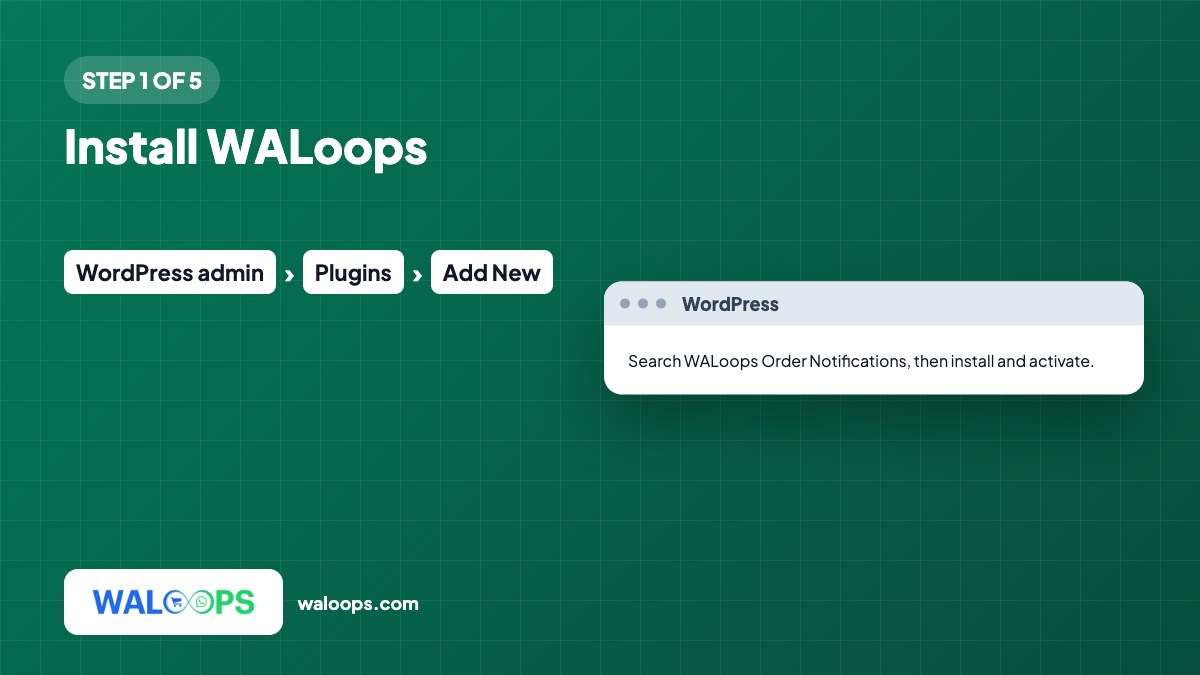
Install and activate the free WALoops plugin. - Start connecting. In WooCommerce → WhatsApp, click “Connect with WALoops”.
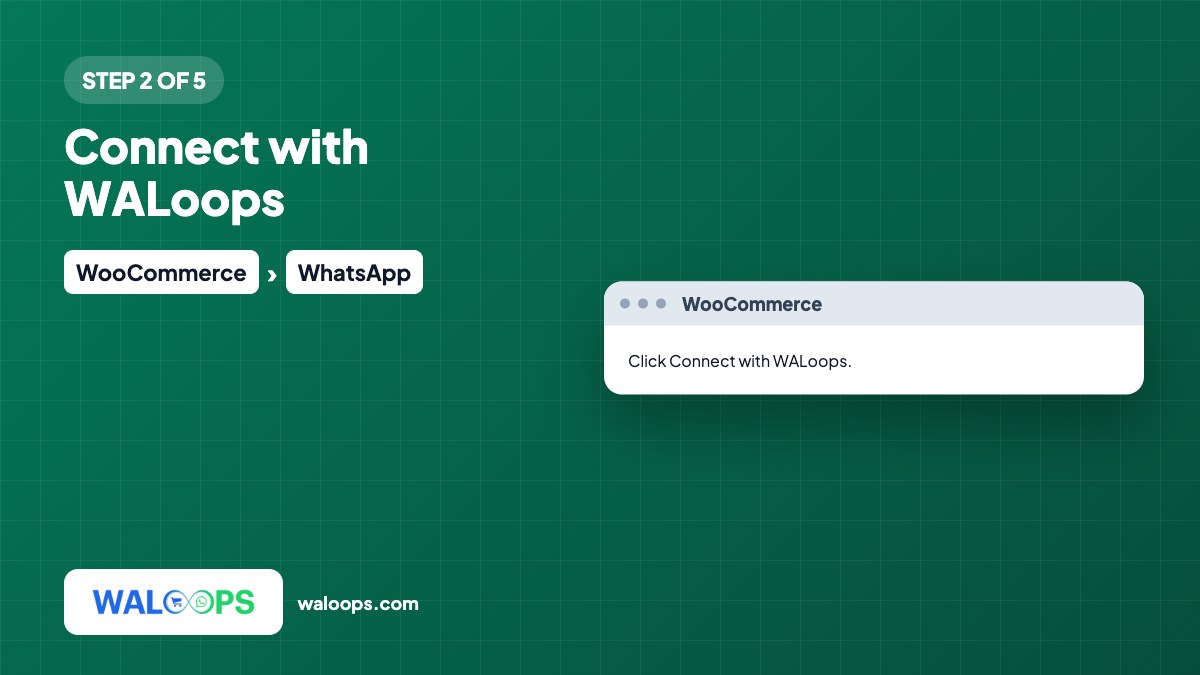
Connect from the WooCommerce WhatsApp screen. - Access WALoops. Sign in or create the account, then return to WooCommerce → WhatsApp.
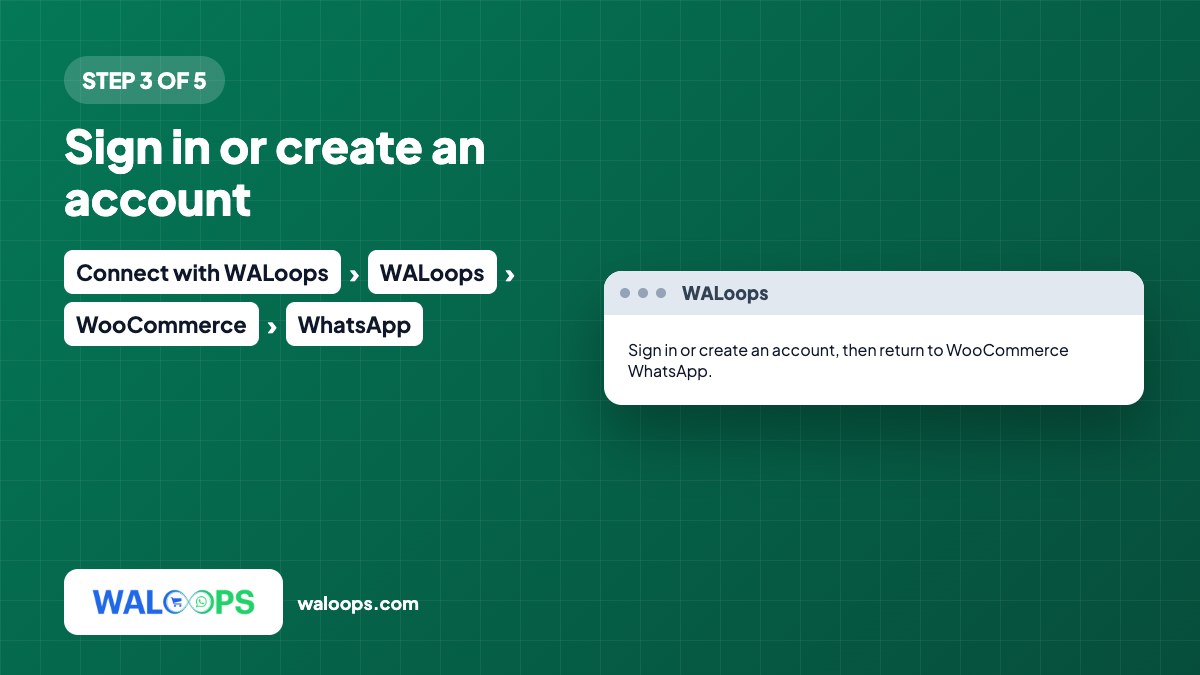
Complete account access and return to the settings. - Choose booking messages. Under Messages, turn on the booking switches you want to use.
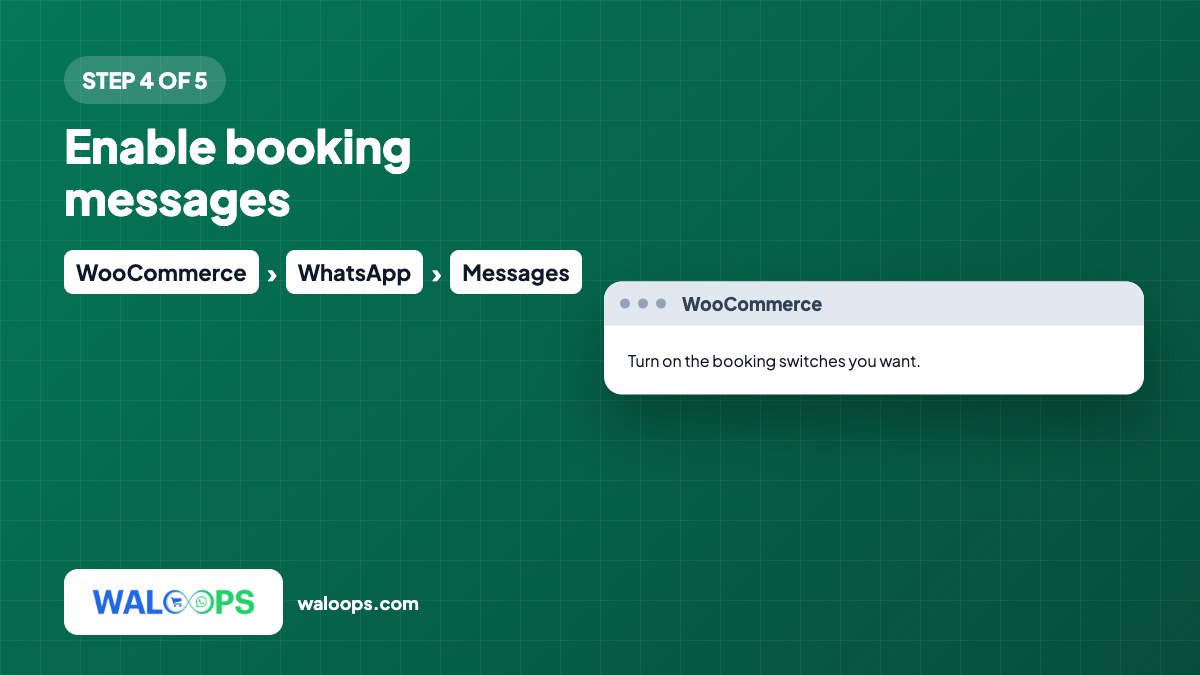
The three booking switches appear when the booking plugin is active. - Save. Click Save to apply your settings.
Save the chosen confirmation and reminder settings.
Cancelled appointments and missed reminder timing
If the order is cancelled, refunded or fails, pending reminders are cancelled. If someone books an appointment less than a day before it starts, there is no time for a one-day reminder, so it is skipped. The confirmation is still sent right after booking. This covers last-minute time slots without sending a late reminder that pretends to be a day ahead.
The WALoops plugin also supports order confirmations, cash on delivery verification and abandoned cart reminders. For the cart feature, read the WooCommerce abandoned cart WhatsApp guide. See the WooCommerce WhatsApp integration page, and see current plans on the pricing page.


