
WooCommerce Bookings: WhatsApp Confirmations and Reminders
Send booking confirmations and timed reminders for WooCommerce Bookings appointments, classes, tours and rooms with the free WALoops plugin.
 WALoops team
calendar_month
schedule4 min read
In this guide
- WALoops adds three WhatsApp switches when WooCommerce Bookings is active: confirmation, booking reminder and end reminder.
- Use them for appointments, classes, tours and rooms, with start and end times read from each order item.
- Customers get a confirmation right after booking, a reminder one day before the start, and an end reminder three hours before it ends.
- The free WooCommerce plugin connects to WALoops. Its booking messages are utility updates, not marketing.
A customer may book a consultation between meetings, reserve a place in a class, or plan a guided tour weeks ahead. Email can sit unread while the date gets closer. A WhatsApp booking update gives the customer the key time details in a channel they often check, and gives them a simple way to reply with a question.
Why use WhatsApp for WooCommerce Bookings bookings?
WooCommerce Bookings can be used for appointments, classes, tours and rooms. Each kind of booking has a different reason a reminder matters. A client wants to know when to arrive for an appointment. A class attendee needs to remember the session time. A tour guest may want to check the start time, and a room guest needs the dates in front of them. A message that repeats the booking details reduces the need to search through an old email.
The WALoops Order Notifications, COD Verification & Abandoned Cart for WooCommerce plugin connects WooCommerce to WALoops. When WooCommerce Bookings is active, its booking switches appear in the Messages section. The message includes the start and end date and time read from the booking on each order item. It does not depend on a generic reminder that leaves out the actual booking schedule.
These are service messages about a booking the customer made. They are not marketing messages. A customer can reply in the conversation, and can reply STOP to opt out. Messages start from the WALoops WhatsApp number, or from the store's own WhatsApp Business number after it is connected. Replies arrive in the WALoops Inbox.
What the three booking messages say and when they go
All three switches start OFF. Turn on only the messages you want to send, then save. The timing is based on the booking start and end values on the order item.
| Message | When it is sent | What it shows |
|---|---|---|
| Booking Confirmation | Right after a booking is placed | What was booked, start and end, and payment details |
| Booking Reminder | 1 day before the booking starts | What was booked, start time, and any amount still to pay |
| Booking End Reminder | 3 hours before the booking ends | What was booked and its end time |
For example, the item might be a one-hour consultation, a Tuesday evening class, a morning tour, or a two-night room reservation. The customer sees the dates in the store's time zone. A timed booking can show as “Fri 12 Dec, 2:00 PM”. An all-day booking shows only its date, such as “Sat 20 Dec 2026”.
Sample WhatsApp booking messages
The following examples show how the messages read for a cooking class booking. The same layout can describe an appointment, tour, room or another WooCommerce Bookings item.
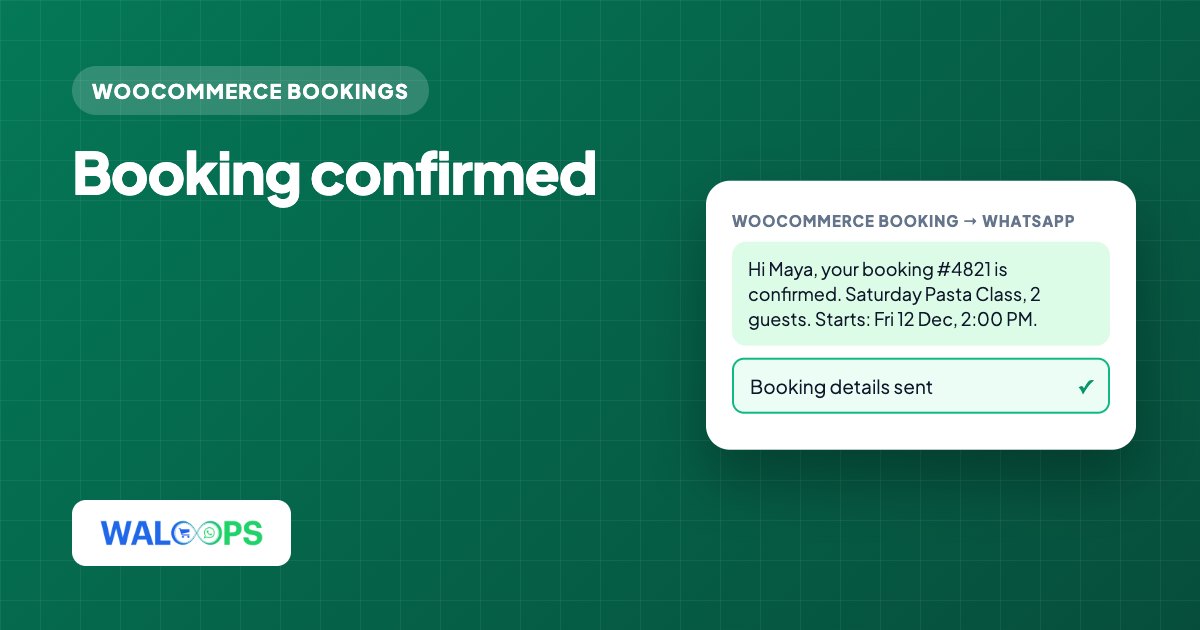
Hi Maya, your booking #4821 is confirmed.
Pasta Class for two
Starts: Fri 12 Dec, 2:00 PM
Ends: Fri 12 Dec, 4:00 PM
Payment: $80.00 paid in full
Reply to this message if you need any help with your booking.
Hi Maya, this is a reminder for your booking #4821.
Pasta Class for two
Starts: Fri 12 Dec, 2:00 PM
Payment: Fully paid
Please reply to this message if your plans change.
Hi Maya, your booking #4821 ends soon.
Pasta Class for two
Ends: Fri 12 Dec, 4:00 PM
Thank you for booking with us. Reply to this message if you need more time.
How deposits appear in a message
Deposits work with WooCommerce Deposits. A booking where only a deposit has been paid, with the order marked “Partially Paid”, still gets the confirmation. The message shows both the amount paid and what remains, for example “$50.00 paid, $150.00 still to pay”. A fully paid booking can show “$200.00 paid in full”. This keeps the payment status clear without changing the booking schedule.
Set up WhatsApp notifications for WooCommerce Bookings
Install the free WordPress plugin “WALoops Order Notifications, COD Verification & Abandoned Cart for WooCommerce”, version 1.0.9 or newer, and connect it to WALoops. Then enable the booking switches.
- Install the plugin. In WordPress admin, open Plugins → Add New, search “WALoops Order Notifications”, then click Install and Activate.
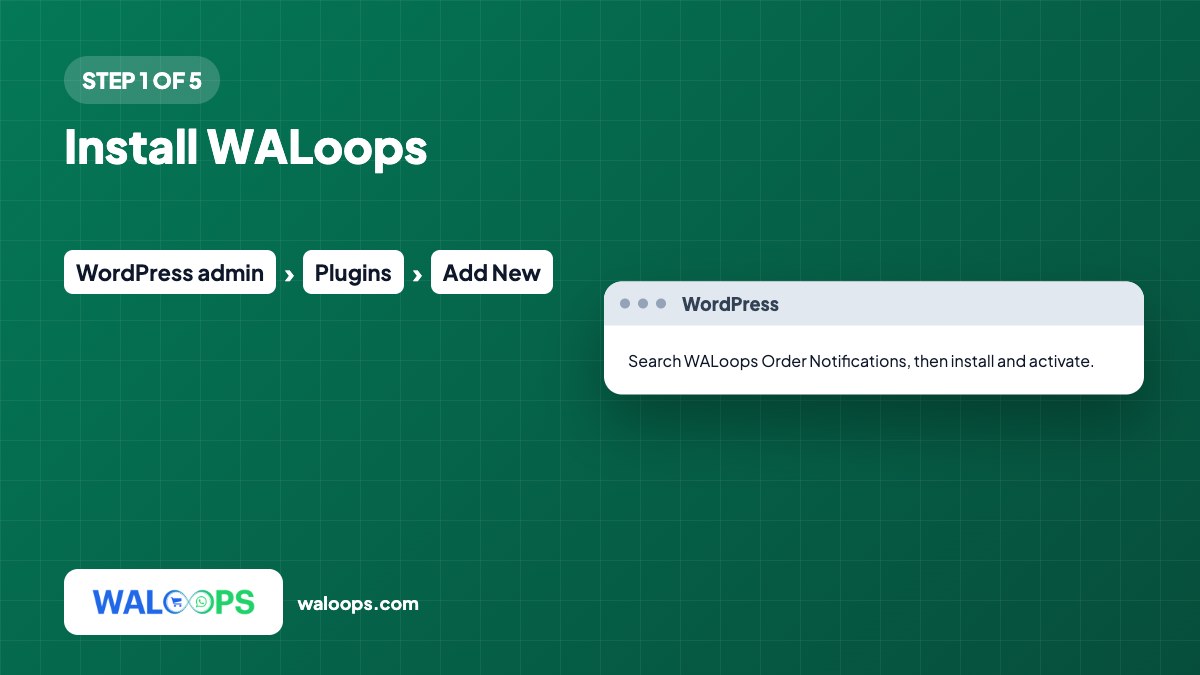
Find and activate the free WALoops WooCommerce plugin. - Open the WhatsApp connection. Go to WooCommerce → WhatsApp and click “Connect with WALoops”.
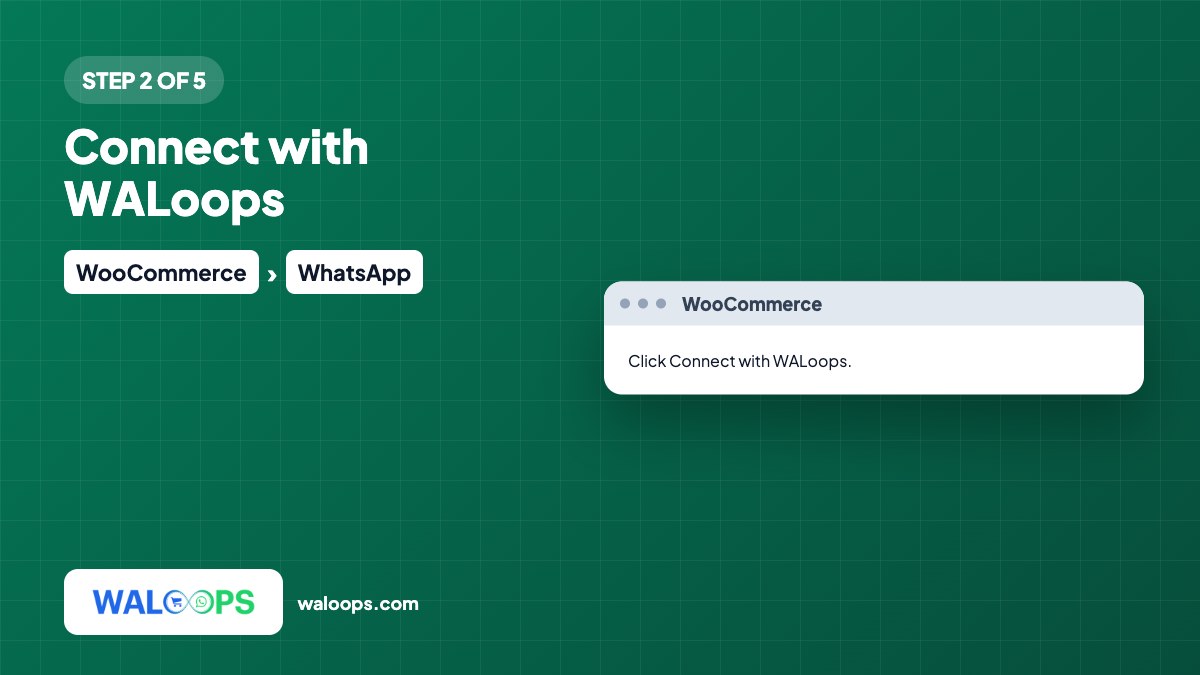
Start the connection from the WooCommerce WhatsApp screen. - Sign in to WALoops. Sign in or create the account, then return to WooCommerce → WhatsApp.
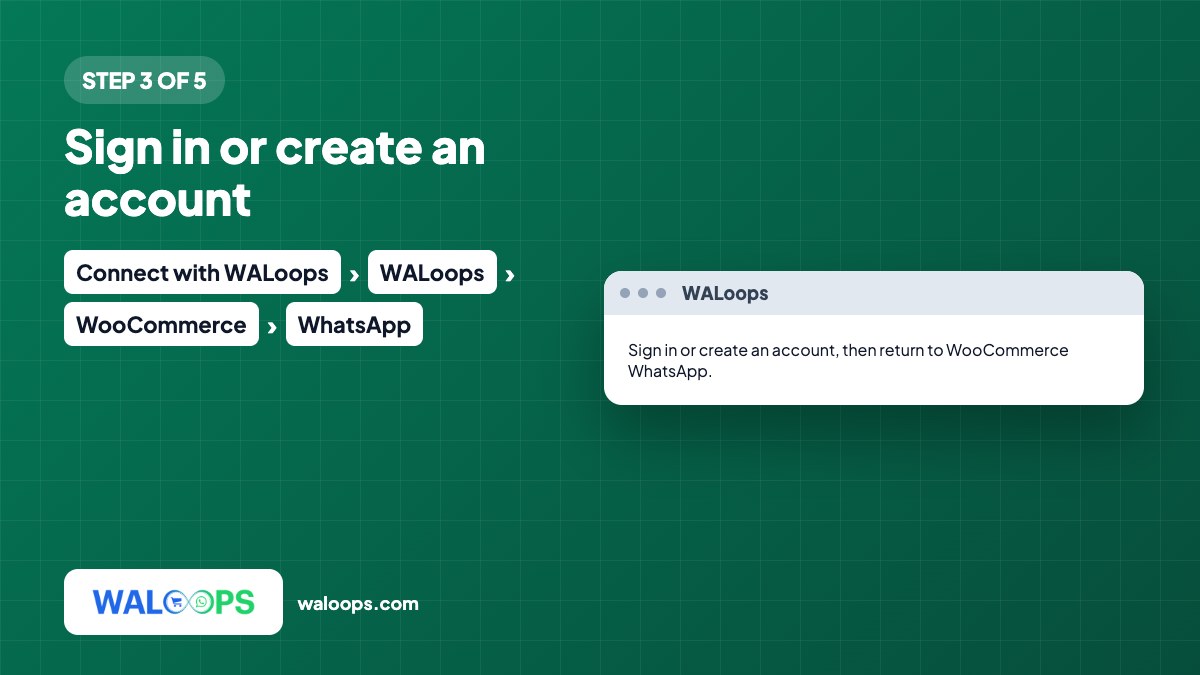
Complete account access and return to WooCommerce. - Turn on booking messages. In Messages, turn on the Booking Confirmation, Booking Reminder and Booking End Reminder switches you want.
Booking switches appear when WooCommerce Bookings is active. - Save the settings. Click Save. The confirmation goes after booking, while the two reminders follow the booking start and end times.
Save the switches to use them for new bookings.
The plugin also handles WooCommerce order confirmations, cash on delivery verification and abandoned cart reminders. Read the WooCommerce abandoned cart WhatsApp guide for that separate use case, or visit the WooCommerce WhatsApp integration page. For pricing, see current plans on the pricing page.
What happens if a booking is cancelled?
If an order is cancelled, refunded or fails, its pending booking reminders are cancelled. This prevents a customer from receiving a reminder for a booking that is no longer going ahead. Confirmation messages are sent right after a booking is placed, so changes later do not make that earlier message disappear.
A booking made less than one day before its start is too soon for the one-day reminder. That reminder is skipped. The booking can still receive its confirmation, and the end reminder follows its timing if it is still pending.


