WhatsApp Error 2388185: Can't Create Authentication (OTP) Templates? Here's the Fix
Why new WhatsApp accounts can create utility templates but not authentication (OTP) templates, what Meta needs before it unlocks them, and how to keep login codes working meanwhile.
 WALoops team
calendar_month
schedule4 min read
WALoops team
calendar_month
schedule4 min read
In this guide
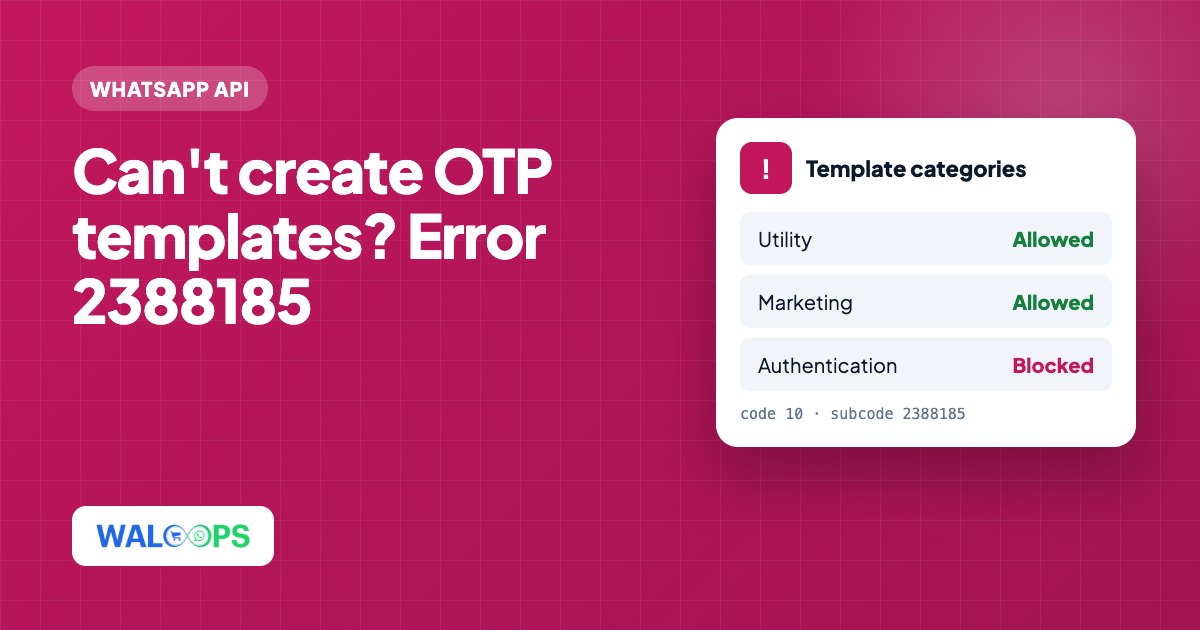
Quick answer: error 2388185 ("This WhatsApp Business account does not have permission to create message template") usually hits new WhatsApp accounts trying to create an Authentication (OTP) template. Utility and marketing templates still work. Meta unlocks the Authentication category once the WhatsApp account has a payment method attached to it and has moved past the starting limit of 250 conversations a day, by verifying the business or by sending good-quality messages. Changing permissions or putting the code in a utility template doesn't help.
- The API returns
code 10,error_subcode 2388185. WhatsApp Manager shows "Cannot Create Message Template" when you click Create template. - Test it: if a normal utility template is accepted on the same account, only the Authentication category is locked.
- Add a payment method to that exact WhatsApp account in Billing & payments. A card on the business, or on a different WhatsApp account, doesn't count.
- Get past the 250-a-day starting limit: verify your business, or start good-quality conversations with real customers.
- A login code inside a utility template is rejected straight away as INCORRECT_CATEGORY.
- New accounts can wait up to 24 hours for template review, so plan for a day's delay.
We hit this with a client this week. They run a property concierge business in Singapore and wanted their website's WhatsApp login codes to come from their own number. Their account was connected and approved, and utility templates went through. But every attempt to create the one-time-password template failed. Other businesses report the same thing on Meta's developer forum with no answer, so here is everything we found.
What the error looks like
From the WhatsApp Cloud API, creating a template with "category": "AUTHENTICATION" returns:
In WhatsApp Manager, the same account shows a popup as soon as you click Create template: "Cannot Create Message Template. This WhatsApp business account does not have permission to create message template". The wording says "permission", so most people start by changing user access. That isn't the cause.
First, check whether only Authentication is blocked
Create a plain utility template on the same account, for example a booking confirmation:
If Meta accepts it (status PENDING or APPROVED), your account can create templates, and only the Authentication category is locked. That is the case this post covers. If even this fails with the same error, the whole account is restricted. Check Account Quality in Meta Business Suite for a policy issue first.
Why Meta blocks Authentication templates
Authentication templates send one-time passwords, so Meta treats them as sensitive and gates them more tightly than other categories. We compared the blocked account with several accounts on the same platform that could create templates normally:
| Check | Blocked account | Same on working accounts? |
|---|---|---|
| Account review status | Approved | Yes |
| Full control for our team and system user | Yes | Yes |
| Account type "Messaging account" (WhatsApp Business app number) | Yes | Yes, one working account is the same type |
| Business not verified | Pending | Yes, one working account isn't verified |
| Payment method on that WhatsApp account | "No payment methods added" | — |
| Messaging limit | 250 a day, no conversations sent yet | — |
So access, review status, account type and verification on their own didn't explain it. What was left was the missing payment method and the lack of sending history. Meta's Business Support assistant gave the same answer for this account: a valid payment method on the WhatsApp account, and moving out of the new-account state by business verification or quality conversations.
On the developer forum, another business reported the same error on a verified business, still at 250 a day with no conversations sent, which suggests verification alone isn't always enough.
How to fix it
- Attach a payment method to the right WhatsApp account. Open Meta Business Suite > Billing & payments > Payment methods > WhatsApp Business accounts, pick the account by its ID, and add the card there. If the page says "No payment methods added" for that account, this is your blocker. Businesses often have two WhatsApp accounts after a failed signup attempt, and the card ends up on the wrong one.
- Get past the 250-a-day starting limit. In WhatsApp Manager > Messaging limits, Meta lists two ways: Verify your business (submit documents in Security Center) or Start high quality business-initiated conversations. Either one raises the limit to 2,000. Upgrades can take up to 24 hours.
- Send real utility messages meanwhile. Booking confirmations, order updates and contact-form replies to real customers build the sending history Meta looks for. See our template approval guide for examples that get approved.
- Try the Authentication template again. Once the payment method is in place and the limit has gone up, create it again. New accounts can take up to 24 hours for review.
What doesn't fix it
- Changing user access. Giving yourself or your system user Full control on the account doesn't change anything. The block is on the account, not the user.
- Removing or adding a partner. Sharing the account with a different platform doesn't lift it either.
- Putting the code in a utility template. We tried "Your login code is {{1}}" as a utility template. Meta rejected it immediately with reason
INCORRECT_CATEGORY. Codes must use the Authentication category, and sending them any other way breaks WhatsApp's policy. - Waiting for business verification alone. It helps, but without a payment method on the account the block can stay.
Keep logins working while you wait
Your customers still need login codes today. With WALoops OTP Login for WordPress, codes send from our shared, already-approved WhatsApp number on every plan. When you connect your own number, we submit the Authentication template on your account. Codes keep coming from the WALoops number until Meta approves it, then switch to your number automatically, without anything changing on your website.