WhatsApp Template Approval: Categories, Rejection Reasons and Examples
Why Meta rejects WhatsApp message templates or moves them to the marketing category, the rules for variables and buttons, and examples that get approved.
 WALoops team
calendar_month
schedule6 min read
WALoops team
calendar_month
schedule6 min read
In this guide
- The three template categories
- How to keep a utility template in utility
- Rules for variables
- Headers, footers and buttons
- Authentication templates are different
- Why templates get rejected
- Templates every online store needs
- Templates for bookings, services and lead forms
- How long approval takes
- Quality rating: what happens after approval
- Creating templates in WALoops
- Every message you start with a customer on the WhatsApp Business API must use a template that Meta has approved.
- Templates are marketing, utility or authentication. The category decides the price, so getting it right matters.
- Most rejections come from a few fixable things: a variable at the start or end, missing sample values, promotional wording in a utility template, or content WhatsApp doesn't allow.
On the WhatsApp Business API you can reply freely for 24 hours after a customer messages you. Anything you send outside that window, like an order update, an OTP or an offer, has to use a message template: text you write in advance and submit to Meta for review. Review is usually quick, often minutes, but can take up to a day or two. A rejection means rewriting and waiting again, so it pays to get templates right the first time.
The three template categories
| Category | What it's for | Examples | India rate |
|---|---|---|---|
| Utility | A specific transaction or account the customer already started | Order confirmed, shipped, out for delivery, payment received, appointment reminder, COD confirmation | ₹0.115 |
| Authentication | One-time passwords | Login, signup or checkout OTP | ₹0.115 |
| Marketing | Anything that promotes, even partly | Offers, launches, cart reminders, win-back messages, newsletters | ₹0.8631 |
Meta decides the final category. If you submit a template as utility but it contains promotional content, Meta can approve it as marketing instead, or change the category later and notify you. The template still works, but every message costs the marketing rate, about 7.5 times the utility rate in India.
How to keep a utility template in utility
A utility template has to be about a specific transaction the customer is part of, and nothing else. Compare:
Stays utility
Becomes marketing
The second one mentions an offer, so the whole message is marketing. Common things that turn utility into marketing:
- Discounts, coupon codes or "sale" wording.
- Product recommendations or "you may also like".
- Buttons like "Shop now" or links to your home page or collections.
- Asking for a review with an incentive attached.
- Vague content that isn't tied to one order or account, like "Thanks for being a customer!"
If you want to upsell after an order, send it as a separate marketing template to customers who opted in to marketing.
Rules for variables
Variables are the {{1}}, {{2}} placeholders filled in when the message is sent. Most rejections come from here:
- Number them in order.
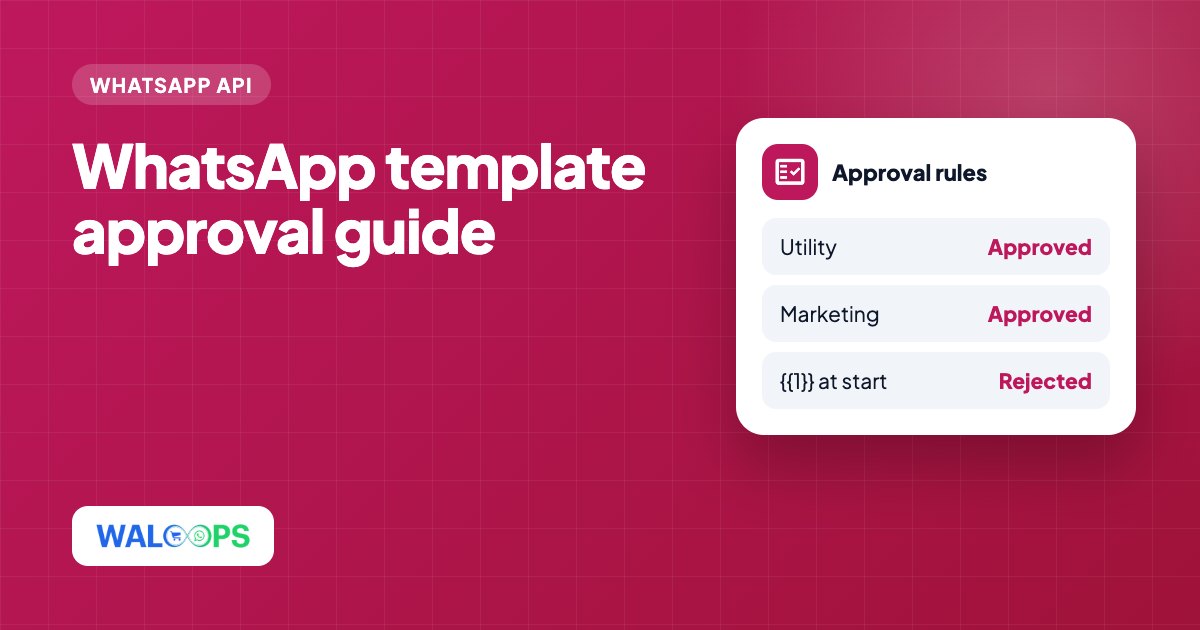
{{1}},{{2}},{{3}}, with no gaps or repeats out of order. - Don't start or end the message with a variable. "{{1}}, your order is ready" gets rejected; "Hi {{1}}, your order is ready." is fine. Add a word or a full stop around it.
- Don't put two variables side by side. "{{1}} {{2}}" with nothing in between looks like a way to send any text you like. Use "{{1}} for order {{2}}" instead.
- Keep enough fixed text. A short message that's mostly variables gets rejected, because Meta can't see what it will actually say.
- Always give realistic sample values. Meta reviews the template with your samples. "Priya" and "#1042" pass; "test" and "xyz" may not.
Headers, footers and buttons
- Header: optional. Text (with at most one variable), or an image, video or document. Images make marketing templates stand out; for utility, a clean text header is enough.
- Body: the main text, up to 1,024 characters. Basic formatting like
*bold*and emojis are allowed. - Footer: optional short line, up to 60 characters, often used for "Reply STOP to unsubscribe".
- Buttons: quick replies (like "Confirm" / "Cancel"), a website link, a phone number or a copy-code button. A link button can have a variable at the end, for example a tracking URL. A button can't link to WhatsApp itself: Meta refuses community, group and chat links (
chat.whatsapp.com/…) on buttons with "Direct links to WhatsApp aren't allowed for buttons", so put those links in the message text instead.
Authentication templates are different
You don't write authentication templates freely. Meta gives a fixed format: the code, an optional security line ("For your security, do not share this code") and an optional expiry line. You choose a copy-code or one-tap autofill button. You can't add links, media or extra text. That strictness is why OTPs are cheap and delivered quickly.
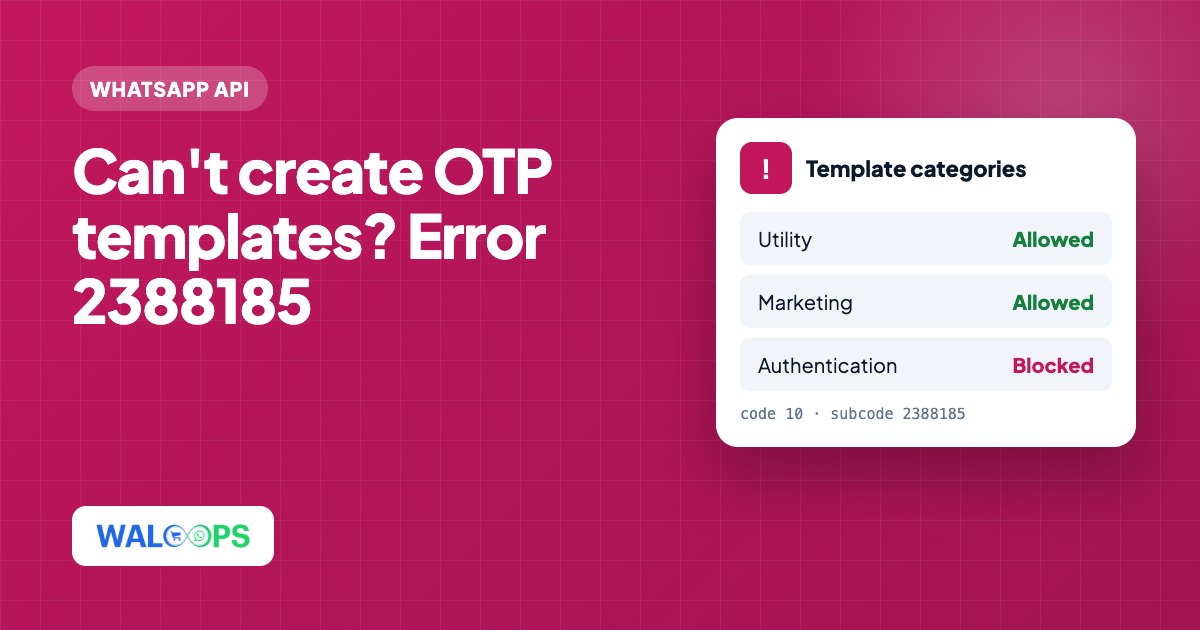
Two things catch people out. First, a login code in a utility or marketing template is rejected straight away with reason INCORRECT_CATEGORY: Meta detects the code, so OTPs must use the Authentication category. Second, new WhatsApp accounts are often not allowed to create Authentication templates at all until the account has a payment method and has moved past the starting limit of 250 conversations a day. See how to fix error 2388185.
Why templates get rejected
| Reason | Fix |
|---|---|
| Variable at the start or end, or two side by side | Add words around each variable |
| Missing or unrealistic sample values | Add real-looking samples for every variable and media header |
| Too many variables for the amount of text | Add more fixed text, or merge variables |
| Content not allowed on WhatsApp (for example restricted products, or asking for sensitive data like full card numbers or ID numbers) | Check WhatsApp's Commerce and Business Policies; don't collect sensitive data over chat |
| Threatening or misleading wording, like fake urgency or "your account will be blocked" | Keep the tone factual |
| Wrong language selected | Pick the language the text is actually written in; submit one template per language |
| Name already used for that language | Use a new template name, like order_shipped_v2 |
INCORRECT_CATEGORY on a template that contains a login or verification code | Send codes only with an Authentication template |
| "Direct links to WhatsApp aren't allowed for buttons" | Move the WhatsApp community, group or chat link into the message text |
Templates every online store needs
A starter set that covers most D2C stores:
- Utility: order confirmation, COD confirmation (with Confirm and Cancel buttons), shipped with tracking link, out for delivery, delivered, refund processed.
- Authentication: login or checkout OTP.
- Marketing: abandoned cart reminder, back in stock, new launch, festive offer, win-back for customers who haven't ordered in 60 days.
For cart reminder wording that works, see abandoned cart recovery on WhatsApp.
Templates for bookings, services and lead forms
Not every business is a store. These utility templates suit rentals, clinics, salons, agencies and anyone with a contact form. Each one answers something the customer started, so it stays in utility, and sending them to real customers builds the sending history that raises your messaging limit.
Contact form thank-you
Booking confirmation
Check-in details
Appointment reminder
Updates and community invites are marketing, not utility. Keep a WhatsApp community link in the text, not on a button:
How long approval takes
Most templates are reviewed within minutes. On a new WhatsApp account, review can take up to 24 hours, and so can messaging-limit upgrades, so submit the templates you need a day before you plan to use them.
Quality rating: what happens after approval
Approval isn't the end. Meta watches how people react to each template. If many recipients block you or report the message as spam, the template's quality drops, and Meta can pause it. Low quality across your number also slows down how fast your messaging limit grows. Send marketing templates only to people who opted in, and give an easy way to stop.
Creating templates in WALoops
In WALoops you create and submit templates from the dashboard, with sample values, media headers and buttons, and see the approval status as soon as Meta reviews them. Approved templates are then available in broadcast campaigns, chatbot flows and store automations like order updates and COD confirmation.