How to Add COD Charges on Shopify (Cash on Delivery Fee Setup)
Shopify has no COD fee setting. Why the usual workarounds leak, how much to charge, and how to add a fee that only COD buyers pay.
 WALoops team
calendar_month
schedule5 min read
WALoops team
calendar_month
schedule5 min read
In this guide
- Shopify has no setting to charge extra for Cash on Delivery. COD is a manual payment method, and Shopify doesn't let you put a fee on a payment method.
- The usual workarounds, a "COD" shipping rate or a "COD fee" product, both leak: buyers can pick the cheaper option and still pay cash.
- A COD app fixes this by adding the fee only when the buyer chooses COD, and by pairing the COD shipping rate with the COD payment method at Shopify's checkout.
- Keep the fee small (₹29 to ₹79) and show it where the buyer picks how to pay, not as a surprise on the last step.
A COD order costs an Indian store more than a prepaid one: the courier's COD handling charge, the cash that reaches you a week later, and the returns that come back when the buyer refuses the parcel. A small COD charge covers part of that and moves some buyers to pay online. This guide explains why Shopify can't do it on its own, the workarounds stores try, and how to set up a COD fee that only COD buyers pay.
Can Shopify add COD charges by itself?
No. In Shopify, Cash on Delivery is a manual payment method under Settings → Payments. You can turn it on, rename it and add instructions, but there is no field for an extra charge. Shopify's shipping rates also don't know which payment method the buyer will pick, because shipping is chosen before payment.
That leaves three ways to charge for COD:
| Method | How it works | The problem |
|---|---|---|
| A "COD" shipping rate | Add a second rate, for example "Cash on Delivery ₹129", next to "Standard ₹80" | Nothing stops a buyer from picking Standard and then choosing COD as payment, or picking the COD rate and paying by UPI |
| A "COD fee" product | Ask buyers to add a ₹49 product to the cart if they want COD | Clunky, easy to skip, and it shows up in your product reports |
| A COD app | The app adds the fee only when COD is chosen and keeps rate and payment method in sync | You need an app that also works at Shopify's own checkout, not only in its own form |
How much should the COD fee be?
Work out what a COD order costs you compared with a prepaid one. A typical example:
- Courier COD handling: ₹30 to ₹50 per order, or around 2% of the order value.
- Expected return cost: your RTO rate × the cost of one return. At 20% and ₹160 shipping both ways, that is ₹32 per COD order.
- Minus the payment gateway fee you would pay on a prepaid order, around 2%.
With these numbers a COD order costs about ₹50 to ₹60 more. You don't need to charge all of it. Most stores land between ₹29 and ₹79. Above that, the fee starts to lose sales instead of moving them to prepaid. Use your own courier invoices and RTO rate, and see COD to prepaid conversion for the full calculation.
Set up a COD fee on Shopify step by step
These steps use the WALoops Shopify app, COD Checkout & Sales. The COD fee is on the Free plan.
- Turn on Cash on Delivery in Shopify. In Shopify admin, open Settings → Payments and activate Cash on Delivery (or your store's manual COD method). The app can only offer COD after Shopify has it.
- Install the app and open the COD tab. Switch on Turn on Cash on Delivery.
- Choose the COD method. The recommended one, Direct draft order, places COD orders straight from the checkout panel. The other two send the buyer to Shopify's checkout with the COD delivery option selected.
- Enter the COD handling fee. Under COD checkout settings, type a flat amount, for example 49. Leave it blank to charge nothing.
- Save, then place a test order. Pick COD and check that the fee shows, then pick online payment and check that it disappears.
What the buyer sees
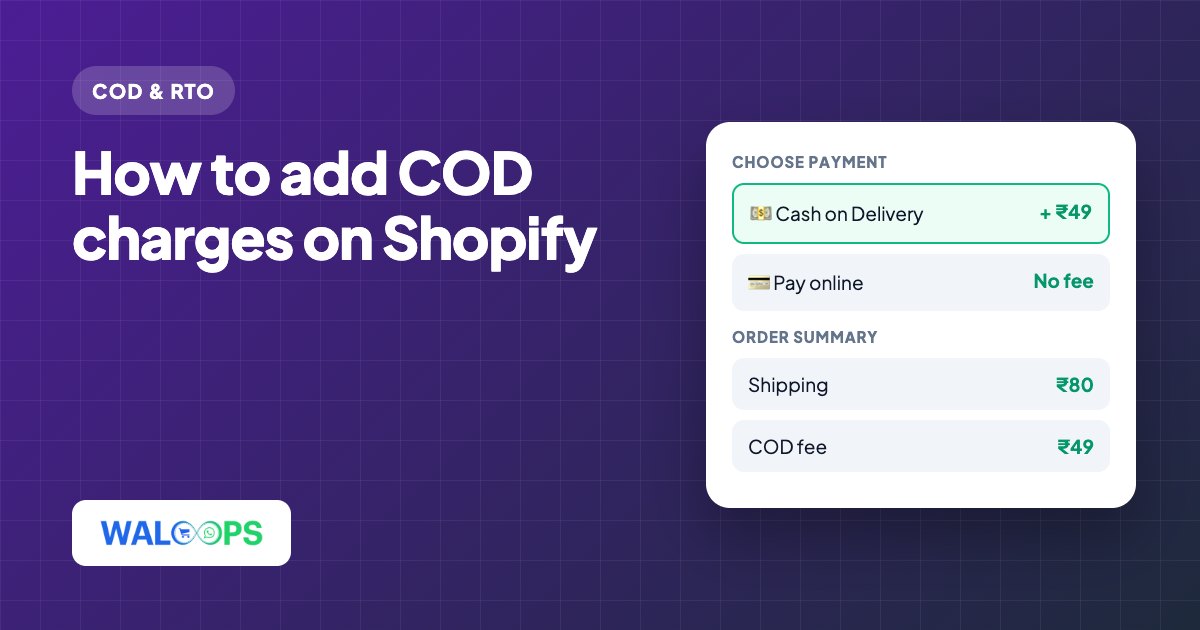
The fee appears where the buyer chooses how to pay, before they commit:
+ ₹49 handling fee
💳 Pay online
UPI, cards, wallets
Once COD is chosen, the order summary lists shipping and the COD fee as separate lines, so the buyer can see exactly what the extra is for. Hiding the fee inside a higher shipping price makes it look like your shipping is expensive.
What happens at Shopify's checkout
If you send buyers to Shopify's own checkout instead of placing orders from the panel, the fee still works:
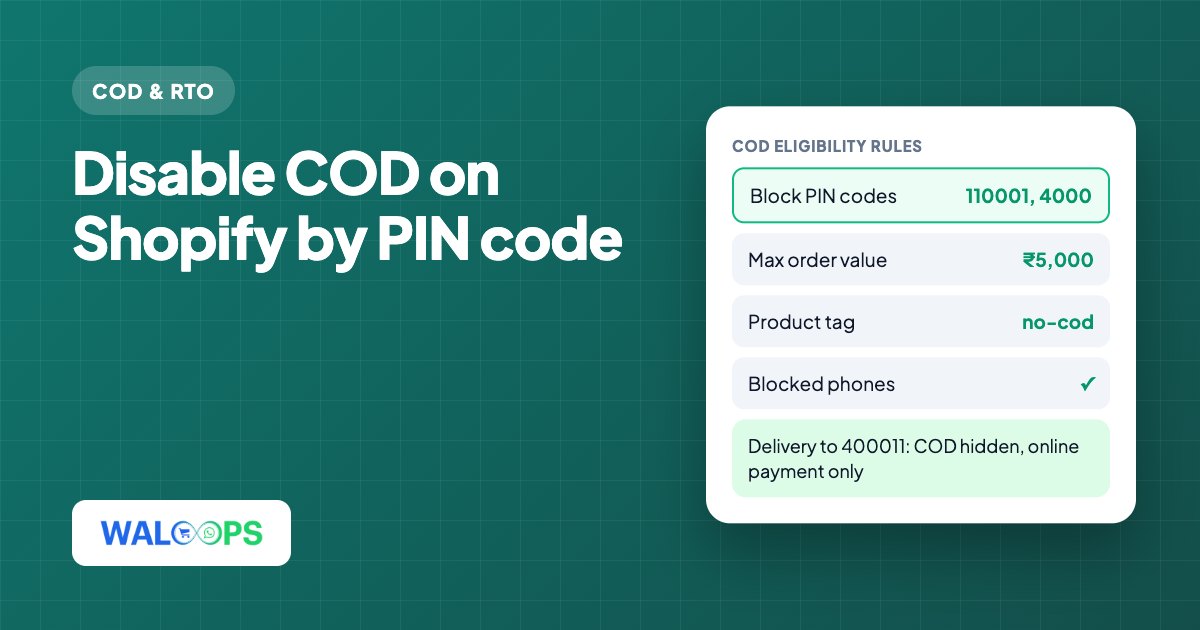
- The app creates the COD rate for you. When you save a fee, WALoops adds a "Cash on Delivery" shipping rate in Shopify priced as your normal shipping plus the fee. You don't have to touch Shopify's shipping settings, and changing or removing the fee updates the rate.
- Rate and payment stay paired. A Shopify Function hides the online payment methods when the buyer picks the Cash on Delivery rate, and hides COD when they pick a normal rate. A buyer can't take the cheaper rate and still pay cash.
On the order in Shopify admin, the fee is part of the shipping line, labelled with the amount (for example "incl. ₹49 COD fee"), so your team can see it at a glance.
Mistakes that make a COD fee backfire
- Showing it only at the last step. A charge that appears after the address and phone number feels like a trick and raises abandoned checkouts.
- Making it too large. A ₹150 fee on a ₹599 order is a quarter of the price. Keep it in proportion to your average order.
- No reason given. One line such as "COD orders cost us more to deliver" or "pay online and skip the fee" turns a penalty into a choice.
- Charging it on top of everything else. If you already ask for an advance with partial COD, don't add a fee to the same order.
- Not measuring. Note your COD share, conversion rate and RTO rate before you start, and compare after two to four weeks.
A COD fee is one of the free fixes in our guide to reducing COD RTO on Shopify. Pair it with WhatsApp OTP before the order and a WhatsApp confirmation after it. To stop COD altogether on risky orders, see how to disable COD by PIN code, product or order value.