WooCommerce COD Fee: How to Add Extra Charges for Cash on Delivery
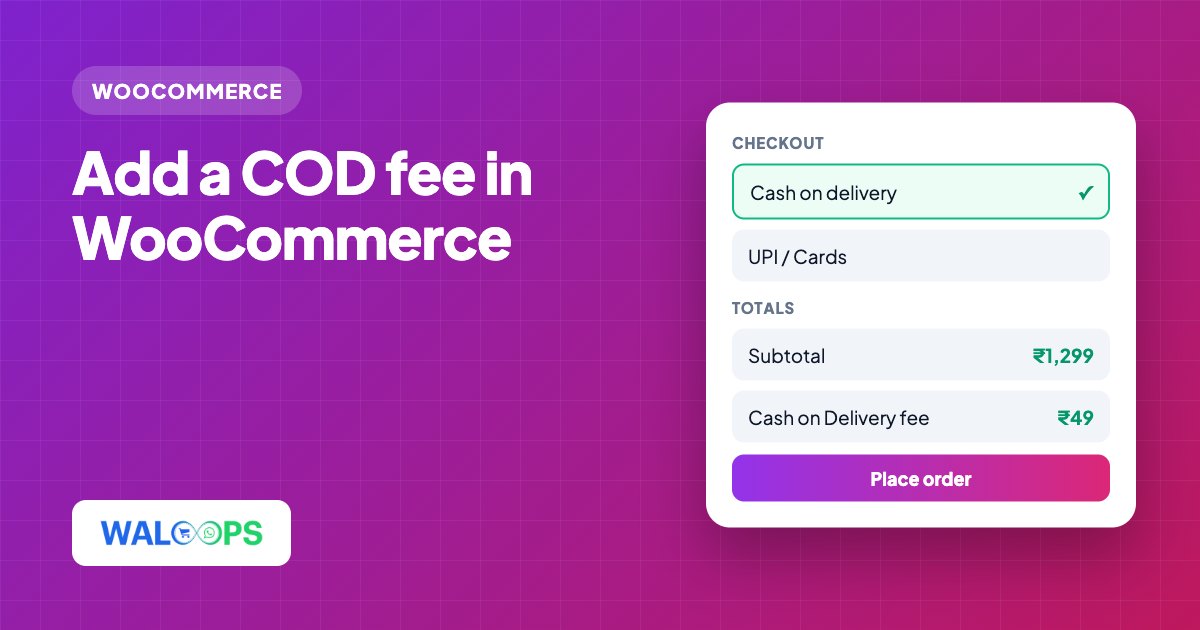
Add a Cash on Delivery fee in WooCommerce that works in the classic and block checkout, how much to charge, and when to turn COD off instead.
 WALoops team
calendar_month
schedule5 min read
WALoops team
calendar_month
schedule5 min read
In this guide
- WooCommerce's Cash on Delivery gateway has no fee setting. You add one with a small piece of code on the
woocommerce_cart_calculate_feeshook, or with a plugin that does it for you. - The fee must update when the buyer switches payment method, in both the classic checkout and the newer block checkout. Many old snippets only handle the classic one.
- Keep it small (₹29 to ₹79, or 1 to 2% of the order) and name it clearly, for example "Cash on Delivery fee".
- For risky orders, turning COD off above a cart total or for some PIN codes works better than a bigger fee.
Every COD order costs a WooCommerce store more than a prepaid one: the courier's COD charge, a week's wait for the cash, and the parcels that come back when buyers refuse them. A COD fee covers part of that and nudges buyers who don't mind paying online to do so. WooCommerce doesn't include one, so this guide covers the three ways to add it and how to choose.
What WooCommerce's COD settings can and can't do
Open WooCommerce → Settings → Payments → Cash on delivery. You can change the title, the description and the instructions, choose which shipping methods allow COD, and choose whether COD is accepted for virtual orders. There is no field for an extra charge, and no way to limit COD by cart total or PIN code.
Both are easy to add with code, because WooCommerce lets you attach a fee to the cart while it calculates totals. The only tricky part is making the fee appear and disappear as the buyer switches between COD and online payment.
Three ways to add a COD fee
| Method | Cost | Good for |
|---|---|---|
| Your own code in the theme | Free | Developers who maintain a child theme |
| A ready snippet in Custom Code | Free | Store owners who want a form instead of code |
| WALoops Express Checkout Pro | $79 a year | Stores that also want a prepaid discount, partial COD and a faster checkout |
1. Your own code
The core is a few lines: on woocommerce_cart_calculate_fees, check whether the chosen payment method is cod and, if it is, call $cart->add_fee(). Two things are easy to miss:
- Classic checkout doesn't recalculate totals when the payment method changes. You need a line of JavaScript that triggers
update_checkouton change. - Block checkout, the default for new WooCommerce stores, doesn't send the chosen payment method to the cart at all. You need to register a Store API update callback and call it from the checkout when the method changes.
Code pasted into functions.php is also lost when the theme updates, and one typo can take the site down. That is why most stores use a snippet plugin.
2. The free Custom Code snippet
Custom Code is our free WordPress plugin for adding snippets without editing theme files. Its library includes Extra fee for a payment method (COD fee), which handles both checkouts:
- Install Custom Code from WordPress.org and open its snippet library.
- Search for "COD fee" and open Extra fee for a payment method.
- Fill in the form. Payment method ID
cod(the default), fee type Fixed amount or Percentage of the order, the amount, and the fee name shown to the shopper, for example "Cash on Delivery fee". - Test it. The snippet is added in test mode, so it runs only for you while you're logged in. Go to checkout, pick COD and check that the fee appears, then pick another method and check that it goes.
- Publish it to all visitors once it looks right.
A percentage fee is calculated on the products plus shipping. The same snippet works for any payment method, for example a fee on bank transfer, by changing the payment method ID.
3. Express Checkout Pro
If you want COD pricing as part of a wider checkout change, WALoops Express Checkout for WooCommerce replaces the cart and checkout with a slide-in panel, and its Pro add-on includes COD pricing. You pick which gateway is your COD gateway, then set:
- a COD surcharge, as a flat amount or a percent of the subtotal, on that gateway;
- a prepaid discount that applies to every other enabled gateway;
- and, separately, partial COD: the buyer pays a percent online now and the rest on delivery.
How much to charge
Work out the extra cost of a COD order. A typical Indian example: ₹30 to ₹50 courier COD charge, plus your RTO rate × the cost of one return (20% × ₹160 = ₹32), minus the 2% gateway fee you'd pay on a prepaid order. That puts a COD order at about ₹50 to ₹60 more than a prepaid one.
You don't need to recover all of it. Most stores charge ₹29 to ₹79, or 1 to 2% on higher-value carts. Above that, the fee loses sales instead of moving them to prepaid. The COD to prepaid guide covers the calculation in more detail.
When to turn COD off instead
A fee works for ordinary orders. For orders where one refusal costs too much, it is better not to offer COD at all. Custom Code has a second free snippet, Turn off Cash on Delivery above a cart total, which hides COD when:
- the order total is above a limit you set, for example ₹5,000;
- the delivery postcode is on your list (use
110*to match every postcode that starts with 110); - the cart has products from categories you choose, such as custom orders or gift cards.
Pull the risky postcodes from your courier's RTO report rather than guessing, and review the list every month.
After the order: confirm COD on WhatsApp
A fee and a few rules reduce bad COD orders. They don't stop the buyer who orders on impulse and changes their mind. Confirming every COD order on WhatsApp before you ship does: the buyer taps Confirm or Cancel, and you only pack the confirmed ones. See WooCommerce COD verification on WhatsApp for the setup.