WhatsApp OTP Login for WooCommerce: Free Plugin Setup Guide
Add WhatsApp OTP login to WooCommerce with a free plugin: install, get an API key, place the form, and verify phone numbers at checkout.
 WALoops team
calendar_month
schedule5 min read
WALoops team
calendar_month
schedule5 min read
In this guide
- The free WALoops OTP Login plugin adds a "log in with WhatsApp" option to WooCommerce. It sits next to the normal username and password form; it never replaces it.
- Setup is four steps: install the plugin, create a free API key from its settings page, choose where the form shows, and test with your own number.
- The Free plan sends 100 codes a month from WALoops' WhatsApp number, so you don't need a Meta developer account to start.
- WhatsApp OTP at WooCommerce checkout is a Starter Ecommerce feature, which also needs your own WhatsApp Business number.
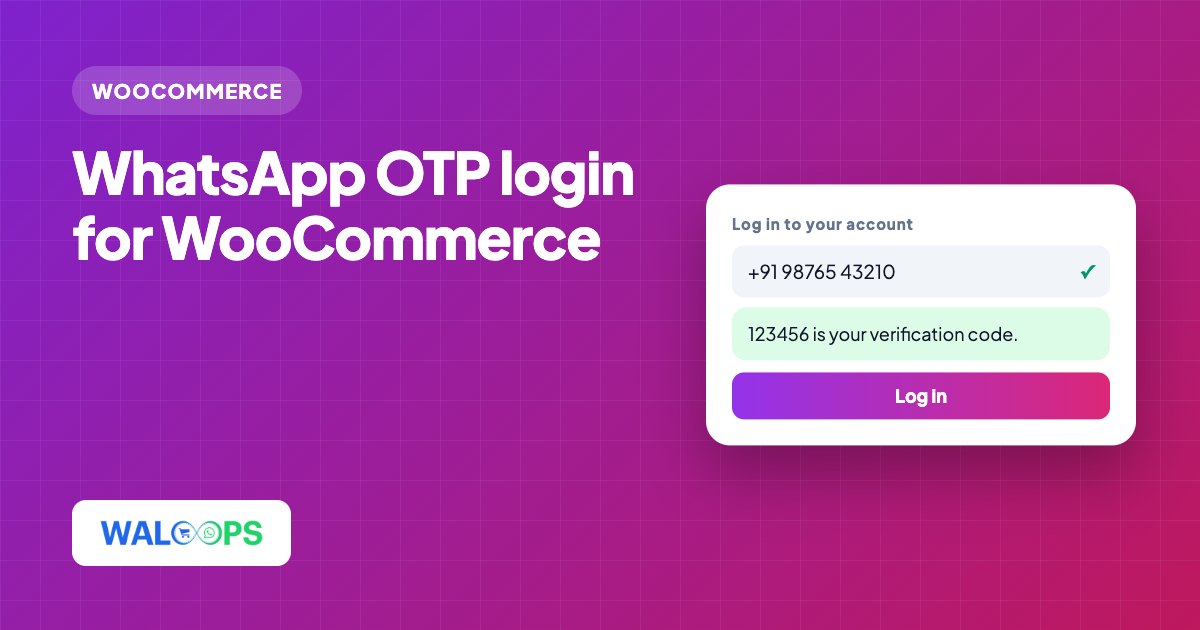
To add WhatsApp OTP login to WooCommerce, install the free WALoops OTP Login plugin, create a free API key, choose where the form appears, and test it with your number. It adds a six-digit WhatsApp code login alongside the existing username-and-password form, and the Free plan includes 100 codes each month from WALoops' number.
What does WALoops OTP Login add to WooCommerce?
It adds WhatsApp login and registration as an option alongside the existing password form.
- Login and registration. Customers log in or create an account with just their WhatsApp number. A new number becomes a new account.
- An added option, not a replacement. The existing username and password form stays where it is, so older customers and admins aren't affected.
- Three form designs. Modern, Minimal and Card, picked in Settings without writing CSS.
- Placement anywhere. The login page, the registration page, or any page with the
[wa_otp_login]shortcode. Elementor and WPBakery users can drag it on as a widget instead. - Country codes. Every phone field has a dial-code selector, pre-filled from the visitor's browser language and always changeable.
How do I set up WhatsApp OTP login?
Set up WhatsApp OTP login by installing the plugin, adding a free API key, choosing placement and design, then testing it with your number.
- Install the plugin. In WordPress, go to Plugins → Add New, search for "WALoops OTP Login", then click Install Now and Activate.
- Get your free API key. Open Settings → WhatsApp OTP Login and click Create a free WALoops account. You land straight on your API key. Paste it into the field on the same settings page and save.
- Choose where the form shows. Turn it on for the login page and the registration page. On WooCommerce, these are the forms on the My Account page. To put it somewhere else, add
[wa_otp_login]to any page. - Pick a design. Choose Modern, Minimal or Card so the form fits your theme.
- Test with your own number. Log out, open My Account in a private window, enter your WhatsApp number and check that the code arrives and logs you in.
What do the plans cost and include?
The Free plan costs $0 for 100 codes a month; Introduction costs $5/month for 1,000; Starter Ecommerce costs $9.99/month for unlimited codes and checkout OTP.
| Plan | Price | Codes a month | Sender number | Checkout OTP |
|---|---|---|---|---|
| Free | $0 | 100 | WALoops number | No |
| Introduction | $5/month | 1,000 | Shared or your own | No |
| Starter Ecommerce | $9.99/month | Unlimited | Your own number (required) | Yes |
When a site reaches its monthly limit, new code requests are blocked with a clear "monthly limit reached" message until the next calendar month or an upgrade. Login doesn't fail silently. A small store with a few hundred logins a month fits on Free or Introduction; a store that wants every checkout verified needs Starter Ecommerce.
Can I verify WhatsApp numbers at checkout?
Yes, checkout OTP is available on the Starter Ecommerce plan. Verifying the phone number at checkout is the step that matters most for cash on delivery. A shopper who has to receive a code on WhatsApp can't place a COD order with a fake or mistyped number. Turn on WooCommerce checkout in the plugin's placement settings. Because this plan sends from your own number, connect your WhatsApp Business number from the WALoops dashboard first; it takes about two minutes with Facebook login.
For COD stores, verification at checkout works well together with a confirmation message after the order. The WooCommerce COD verification guide covers that second step.
How do I send codes from my own number?
You can send login codes from your own WhatsApp number after your account meets Meta's requirements.
Meta only allows login-code (authentication) messages from your own number once your WhatsApp account has a payment method and is past Meta's starting limit of 250 conversations a day. You get past that limit by verifying your business in Meta Business Settings, or by sending good-quality messages to enough customers over time.
Until then, codes keep going out from the WALoops number, so customers can still log in. After you connect your number, WALoops submits the login-code template on your account. Meta's review can take up to 24 hours on new accounts and is often minutes on established ones. Codes switch to your number automatically once it's approved. If Meta refuses the template, the error 2388185 guide explains why.
Can I verify phone numbers on other forms?
Yes, the plugin verifies numbers on forms beyond login forms. Add a [wa_otp_verify your-phone] tag in Contact Form 7, or the "WhatsApp OTP Verify" field in WPForms, Gravity Forms or Formidable Forms. The form won't submit until the number checks out, which stops fake enquiries and spam leads. No extra setup is needed once your API key is saved.
What should I check if OTP login has a problem?
First check the WhatsApp number and country code, then check monthly usage or form placement depending on the issue.
- The code doesn't arrive. Check that the number has WhatsApp and the right country code. Then check your monthly usage on the plugin's settings page.
- The form doesn't appear. Check the placement settings, or add the shortcode by hand if your theme replaces the WooCommerce My Account template.
- You want different wording. WhatsApp only allows pre-approved wording for one-time codes. You can choose between code only, code with expiry, or code with expiry and a security warning.
Prefer email? The plugin can also send a six-digit code by email, alongside WhatsApp or instead of it. Email codes are generated and checked on your own site and don't need an API key. For a cost comparison of the channels, see WhatsApp OTP vs SMS OTP, and for the full feature list, the WhatsApp OTP Login plugin page.