How to Connect Guesty to WhatsApp: Step-by-Step Integration Guide
Connect Guesty to the WhatsApp Business API in 10 minutes and send every Airbnb, Vrbo, Booking.com and direct guest an automatic WhatsApp booking confirmation.
 WALoops team
calendar_month
schedule4 min read
WALoops team
calendar_month
schedule4 min read
In this guide
- Guesty doesn't send WhatsApp messages from your own business number by itself. You connect it to a WhatsApp Business API platform through the Guesty Open API.
- Setup takes about 10 minutes: create a Client ID and Client Secret in Guesty, paste them into WALoops, click Activate.
- Every new or changed reservation, from Airbnb, Vrbo, Booking.com or your direct site, can then send the guest a WhatsApp message with their name, property, dates and total.
- Guest replies land in a shared inbox, where an AI agent can answer routine questions and pass the rest to your team.
Guesty already brings every channel's bookings into one calendar. What it doesn't do is message guests on WhatsApp from your own business number, which is where most international guests actually reply. This guide shows how to connect Guesty to WhatsApp step by step, which messages to send, and what to check before you go live.
What you need before you start
- A Guesty account with Open API access. Most Guesty plans include it. Look for Integrations → Guesty API in the Guesty dashboard. If it isn't there, ask Guesty support to enable Open API access.
- A WhatsApp number on the WhatsApp Business API. This can be a new number or your existing WhatsApp Business app number. The WhatsApp Business API guide explains both routes.
- A WALoops account on a plan that includes automation apps. Every plan starts with a 7-day free trial.
How to connect Guesty to WhatsApp
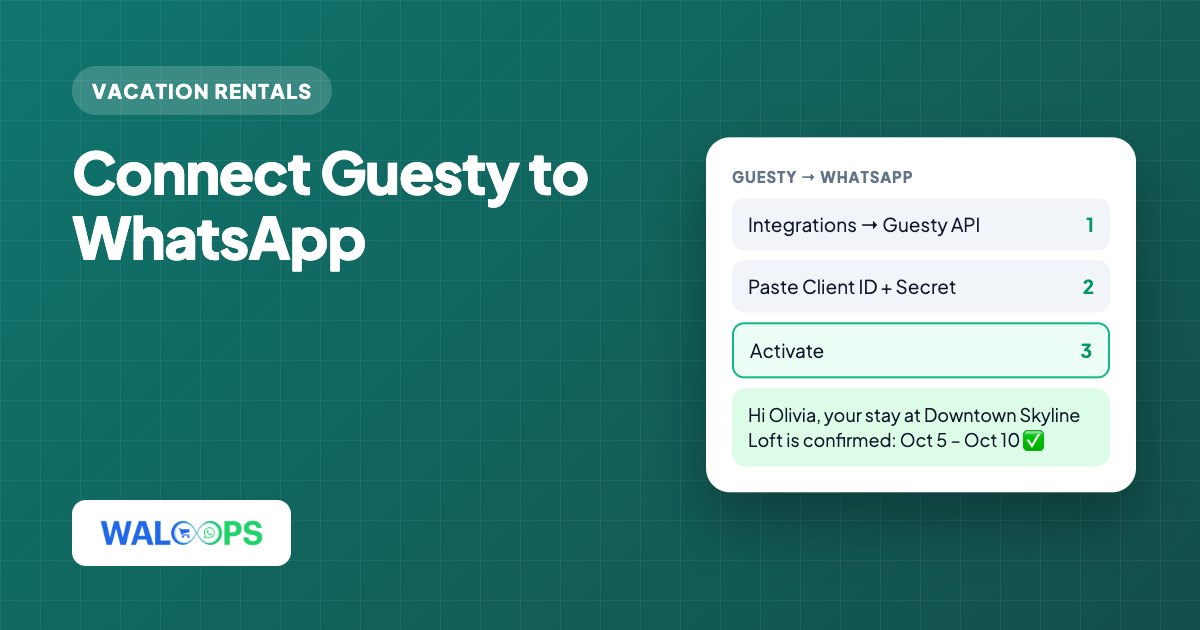
- Create API credentials in Guesty. In Guesty, open Integrations → Guesty API and create a new key. Copy the Client ID and the Client Secret. The secret is shown only once, so paste it somewhere safe straight away.
- Add them in WALoops. In WALoops, go to Automation → Apps → Guesty, paste the Client ID and Client Secret, and save. Guesty's access tokens expire every 24 hours; WALoops renews them for you.
- Click Activate. WALoops registers Guesty's reservation webhooks on your account by itself, so there is no URL to paste into Guesty.
- Create an automation. Choose Guesty as the trigger, pick Reservation created or Reservation updated, and choose WhatsApp as the action with an approved message template.
- Map the fields. Fill the template's variables from the reservation: guest first name, property name, check-in, check-out, nights, guests and total.
- Test with a real booking. Create a test reservation in Guesty with your own phone number as the guest's and check that the message arrives with every field filled in.
What you can use in your messages
These are the fields WALoops reads for each Guesty reservation:
| Group | Fields |
|---|---|
| Guest | Full name, first name, last name, phone, email |
| Reservation | ID, status, check-in, check-out, nights, number of guests, total, currency, booking channel, created date |
| Property | Listing name, full address, city |
The booking channel (Airbnb, Booking.com, direct and so on) is a field like any other, so you can add a condition and send a different message per channel. For example, thank direct bookers for booking direct, or remind OTA guests to save your number.
Which Guesty messages to send on WhatsApp
| Trigger | Condition | Message |
|---|---|---|
| Reservation created | Status is confirmed | Booking confirmation to the guest |
| Reservation created | None | New booking alert to your cleaner, co-host or owner |
| Reservation updated | Status is cancelled | Cancellation notice |
Guesty sends a "reservation updated" event for many small edits, such as notes or payments. Always add a condition to an updated-reservation automation so guests only get a message when it matters, like a cancellation.
Booking confirmation
Team alert
All of these are utility messages, which Meta bills at the lower utility rate as long as they contain no promotion. The template approval guide shows how to write them so they're approved the first time.
Answering guest replies
The confirmation is where the conversation starts. When guests reply, their messages arrive in the WALoops shared inbox, where your whole team can see and answer them from the same number. An AI agent trained on your house rules can answer the questions you get every day, like WiFi, parking, check-in time and pets, and hand anything about money, damage or complaints to a person.
Common problems
- No Integrations → Guesty API menu: your account doesn't have Open API access yet. Guesty support can switch it on.
- Messages not arriving: check the guest's phone number in Guesty includes a country code. Numbers without one are read with your WALoops account's default country code.
- Template rejected: keep confirmations free of offers and discount codes, or Meta classes them as marketing.
- Credentials stopped working: if someone deletes or rotates the key in Guesty, create a new one and paste it into WALoops again.
For the other property management systems, see the WhatsApp guest messaging guide for vacation rentals. For a summary of the Guesty connection, see the Guesty WhatsApp integration page.