Meta Business Verification Rejected? Why It Happens and How to Fix It
Why Meta rejects business verification for WhatsApp, which documents work for Indian businesses, and what to change before you submit again.
 WALoops team
calendar_month
schedule4 min read
WALoops team
calendar_month
schedule4 min read
In this guide
- Meta rejects business verification when the details you typed don't match your documents or your website. It is almost never about the size of your business.
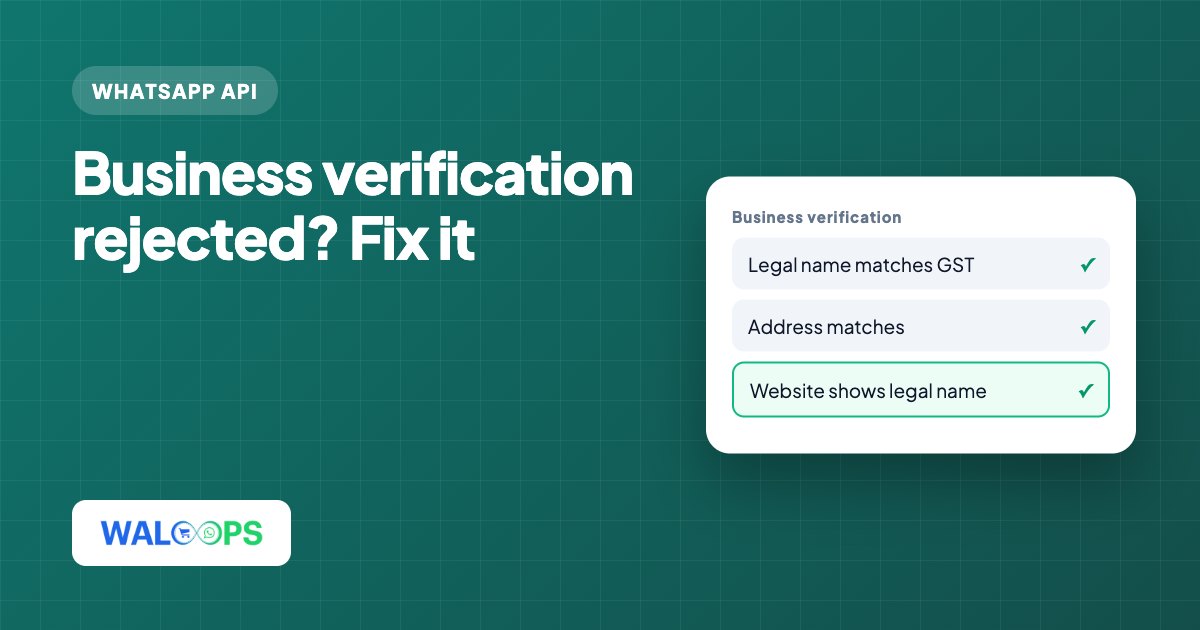
- The fix is to make three things say exactly the same: the legal name and address in Business Settings, the document you upload, and your website.
- You can still use the WhatsApp Business API while you fix it, with a limit of 250 customers a day for messages you start.
- A review that shows "In review" for more than a week usually needs more information from you. Check Security Centre and your email.
Meta business verification is rejected most often when the legal name or address in Business Settings differs from your uploaded document, or your website doesn't confirm the business. Match those details exactly across all three. You can still use the WhatsApp Business API while fixing it, with a limit of 250 customers a day for conversations you start.
Why verify your business for WhatsApp?
Verify your business to raise your daily messaging limit in steps, get your display name approved, and become eligible to apply for a verified badge. Verification is optional when you start on the WhatsApp Business API, so without it you can message up to 250 different customers a day in conversations you start, such as order updates or campaigns. If you're planning a large campaign, verify a few weeks before it. For the full setup, see how to get the WhatsApp Business API.
What usually causes a rejection?
Meta usually rejects verification when your business details, documents or website don't match.
| What Meta sees | What to change |
|---|---|
| Legal name doesn't match the document | Type the name exactly as it appears on the GST certificate or certificate of incorporation, including "Private Limited" or "LLP". A brand name is not a legal name. |
| Address doesn't match | Use the address printed on the document you upload, in the same order and with the same PIN code. |
| Website doesn't confirm the business | Show the legal name, address and phone number on your website, usually in the footer and on the contact page. |
| Email isn't on your domain | Use an email address on your website's domain, such as [email protected], rather than Gmail. |
| Document can't be read | Upload a clear, complete, current scan. Cropped photos, expired documents and screenshots are often refused. |
| Phone number can't be reached | Give a number that can receive Meta's SMS or call for the verification code. |
Which documents work for Indian businesses?
Indian businesses can use a GST registration certificate, certificate of incorporation or Udyam registration certificate.
- GST registration certificate: the most common choice, since it shows the legal name and address.
- Certificate of incorporation: for private limited companies and LLPs.
- Udyam registration certificate: for registered MSMEs.
Pick one document where the name and address are exactly what you typed in Business Settings. If your GST address is different from your current office, use the GST address everywhere, or update GST first.
How do you submit verification again?
Fix the details that caused the rejection, then submit one matching document from Security Centre.
- Read the reason. Open Business Settings → Security Centre and note what Meta says was wrong. Check the email linked to your Business account too; Meta sometimes asks for more information there.
- Fix the business details. In Business Settings → Business info, correct the legal name, address, phone and website so they match your document word for word.
- Fix your website. Add the legal name, address and phone number to the footer or contact page, and make sure the site loads on its own domain.
- Use a domain email. If Meta offers email verification, use an address on your website's domain.
- Start verification again from Security Centre and upload one clear document that matches.
- Wait for the review. It usually takes a few days. Submit once with everything fixed, rather than several times with small changes.
What if verification is stuck "In review"?
A few days in review is normal, but a wait longer than a week often means Meta needs more information from you. It may be a second document or a domain check. Look for a pending request in Security Centre and in your email. If there is nothing to answer, keep waiting rather than starting a new request.
What can you still do without verification?
You can still receive customer messages, send updates to up to 250 customers a day and use your shared inbox, chatbot and AI agent.
- Customer-started conversations. Replies to customers who message you first work as normal, inside the 24-hour window.
- Order and booking updates to up to 250 different customers a day.
- Your shared inbox, chatbot and AI agent for incoming messages.
What waits: a higher daily limit, and on many accounts, login-code templates from your own number. The error 2388185 guide explains that second case.
How can you check verification status in WALoops?
Check the WhatsApp page in your WALoops dashboard; its health card reads your account's status from Meta. It shows business verification as Verified, In review, Not verified or Rejected, with a button that opens Security Centre in Meta Business Suite. The same card shows your display name status, payment method and message limit, so you can see what is holding the account back in one place. Plans start at $9.99 a month, with no markup on Meta's fees; see pricing.