Order on WhatsApp for WooCommerce: Add the Button and Handle Chat Orders
Let shoppers order on WhatsApp from your WooCommerce store with a free button that sends the product, options, quantity and price in one tap.
 WALoops team
calendar_month
schedule5 min read
In this guide
- What does an Order on WhatsApp button do?
- How do I add an Order on WhatsApp button to WooCommerce?
- Should I replace my checkout with WhatsApp orders?
- How do I handle orders that come in on WhatsApp?
- Can WhatsApp orders be confirmed and tracked automatically?
- Does the button work with variable products and the block theme?
- Common problems
- An Order on WhatsApp button lets a shopper send you the product, options, quantity and price in a WhatsApp chat instead of filling in the checkout.
- The free WALoops plugin for WooCommerce adds the button under Add to cart, an optional whole-cart button on the cart page, and a shortcode for any other place.
- The buttons need no WhatsApp Business account and no API. They open WhatsApp on the shopper's phone with the message already typed.
- Orders taken in chat still need to be entered in WooCommerce by you, so use the button next to your normal checkout, not instead of it.
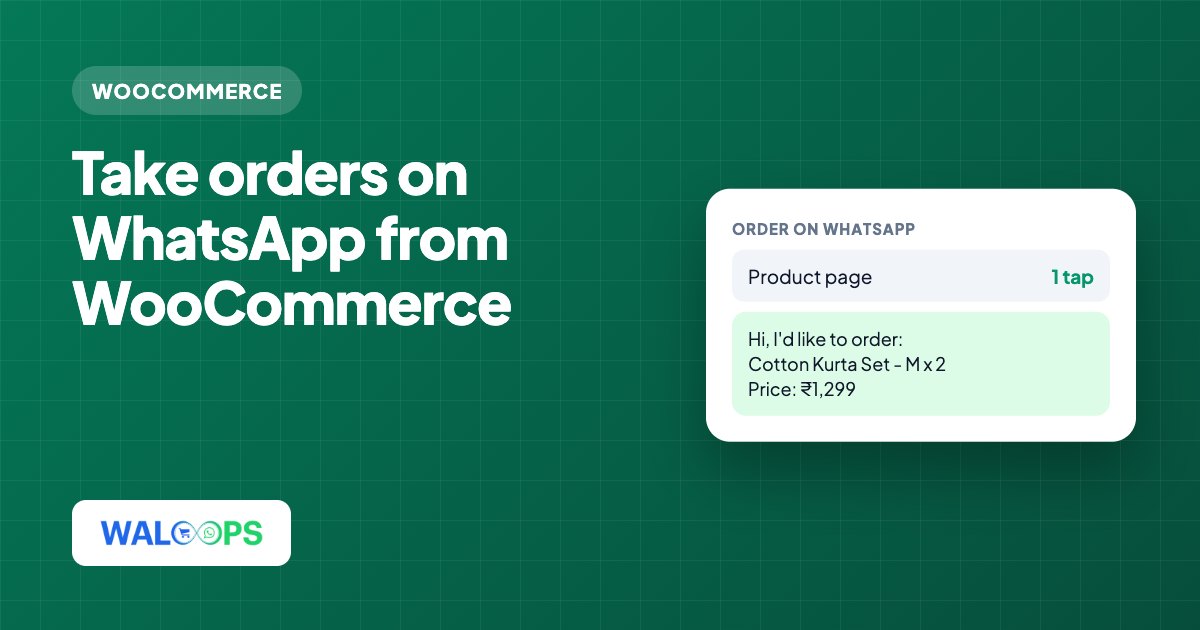
To let customers order on WhatsApp from WooCommerce, install the free WALoops Order Notifications plugin and switch on its Order on WhatsApp button. It appears under Add to cart and opens a chat with your number with the product name, chosen options, quantity and price already typed. The shopper only presses send.
Many Indian shoppers, especially first-time buyers and older customers, would rather ask a question and order in a chat than type an address into a form. This guide shows how the button works, how to set it up, what the shopper's message looks like, and how to handle those chat orders without losing track of them.
What does an Order on WhatsApp button do?
It turns a product page into a ready-made WhatsApp message to your store. When the shopper taps it, WhatsApp opens on their phone (or WhatsApp Web on a computer) with a message to your number that lists exactly what they picked.
Because the message includes the variation and quantity, you don't have to ask "which size?" or "which colour?" before you can quote a delivery date. The link at the end takes you straight to the product if you need to check stock. You can rewrite the message in the settings with the placeholders {product}, {quantity}, {price}, {sku} and {url}, for example to add "Please share your PIN code".
How do I add an Order on WhatsApp button to WooCommerce?
Install the free plugin, open its settings and turn the button on. Setup takes about five minutes and no code.
- Install the plugin. In WordPress, go to Plugins → Add New Plugin, search for WALoops and install WALoops Order Notifications. Activate it.
- Open the settings. Go to WooCommerce → WhatsApp and open the Order on WhatsApp settings.
- Tick Show on product pages. The button appears under Add to cart on every product page.
- Enter your WhatsApp number with the country code, for example +91 98765 43210. Leave it empty to use the chat button's number.
- Optional: tick Cart page. A second button appears under Proceed to checkout and sends the whole cart, with each line's quantity and total.
- Test it on your phone. Pick a variation, change the quantity and tap the button. Check the message shows the right size, colour, quantity and price.
To place the button somewhere else, such as a landing page or a sale banner, use the shortcode [waloops_whatsapp_order id="123"] with the product's ID.
Should I replace my checkout with WhatsApp orders?
No. Keep your checkout and offer WhatsApp as a second way to buy. The two suit different shoppers.
| Normal checkout | Order on WhatsApp | |
|---|---|---|
| Best for | Shoppers who know what they want | Shoppers with a question, bulk buyers, repeat customers |
| Order created in WooCommerce | Automatically | By you, after the chat |
| Payment | Your gateway or COD at checkout | Payment link or COD, agreed in chat |
| Your time per order | None | A few minutes of chat |
If most chat orders turn out to be simple, the button is telling you something about your checkout: too many fields, no COD, or unclear delivery times. Fix those and more people will check out on their own.
How do I handle orders that come in on WhatsApp?
Reply quickly, confirm the details, then create the order in WooCommerce so stock, invoices and shipping stay in one place.
- Reply within minutes. A shopper who chose chat is waiting with the phone in hand.
- Confirm the essentials: name, full address with PIN code, and payment method.
- Create the order in WooCommerce → Orders → Add order, add the products and the customer's phone number.
- Send a payment link for prepaid orders, or mark it Cash on Delivery.
Once the order exists in WooCommerce, it is a normal order. If the plugin is connected to WALoops, the customer then gets the same automatic WhatsApp updates as any other order. See WooCommerce WhatsApp order notifications for the messages you can send.
Can WhatsApp orders be confirmed and tracked automatically?
Yes, once the order is in WooCommerce and the plugin is connected to WALoops. Click Connect in WooCommerce → WhatsApp and order messages start from the WALoops number, with your first 100 messages free.
- Order confirmation as soon as you create the order.
- COD confirmation with Confirm and Cancel buttons for Cash on Delivery orders. Cancel cancels the order in WooCommerce and puts the stock back. The COD verification guide covers the flow.
- Status updates when the order moves to completed, cancelled or refunded.
On the Starter plan ($9.99 a month) you can connect your own WhatsApp number, so updates and chat orders come from the same number your customers already message.
Does the button work with variable products and the block theme?
Yes. The message uses the variation the shopper picked, so a product with sizes and colours sends the chosen size and colour. The plugin works with WordPress 6.0+, WooCommerce with HPOS, and the block checkout.
Common problems
- Chat opens with the wrong number: the number in settings needs the country code, such as +91, and no leading zero.
- The message doesn't show the size: the shopper tapped the button before choosing a variation. Check the product's variation dropdowns load before the button on your theme.
- The button sits in an odd place: some themes move the Add to cart area. Use the shortcode in a block or widget instead.
- Too many chats to answer: add a floating chat button only on product pages, and answer common questions in the product description. The WooCommerce WhatsApp chat button guide covers placement.
For everything the free plugin does on WooCommerce, see the WooCommerce WhatsApp integration page.