Hostaway WhatsApp Integration: Step-by-Step Setup Guide
Connect Hostaway to WhatsApp to send booking confirmations, changes and cancellations from your own number, including the webhook step Hostaway needs.
 WALoops team
calendar_month
schedule4 min read
WALoops team
calendar_month
schedule4 min read
In this guide
- Hostaway doesn't send WhatsApp messages from your own business number by itself. You connect it to a WhatsApp Business API platform through the Hostaway API.
- Setup takes about 15 minutes: copy your Hostaway Account ID and Client Secret into WALoops, then add one webhook URL in Hostaway.
- Every new or changed reservation, from Airbnb, Vrbo, Booking.com or your direct site, can then send the guest a WhatsApp message with their name, property, dates and total.
- Guest replies land in a shared inbox, where an AI agent can answer routine questions and pass the rest to your team.
Hostaway brings every channel's bookings into one dashboard, but guests still expect to reach you on WhatsApp, especially international travellers. This guide shows how to connect Hostaway to WhatsApp step by step, which messages to send, and the one setup step that has to happen on Hostaway's side.
What you need before you start
- A Hostaway account with API access. You'll find it under Settings → API in the Hostaway dashboard.
- A WhatsApp number on the WhatsApp Business API. This can be a new number or the number you already use in the WhatsApp Business app. The WhatsApp Business API guide explains both routes.
- A WALoops account on a plan that includes automation apps. Every plan starts with a 7-day free trial.
How to connect Hostaway to WhatsApp
- Copy your Hostaway API details. In Hostaway, open Settings → API and copy your Account ID and Client Secret.
- Paste them into WALoops. Go to Automation → Apps → Hostaway, enter the Account ID, paste the secret as the API Key, and save. WALoops exchanges them for a Hostaway access token by itself.
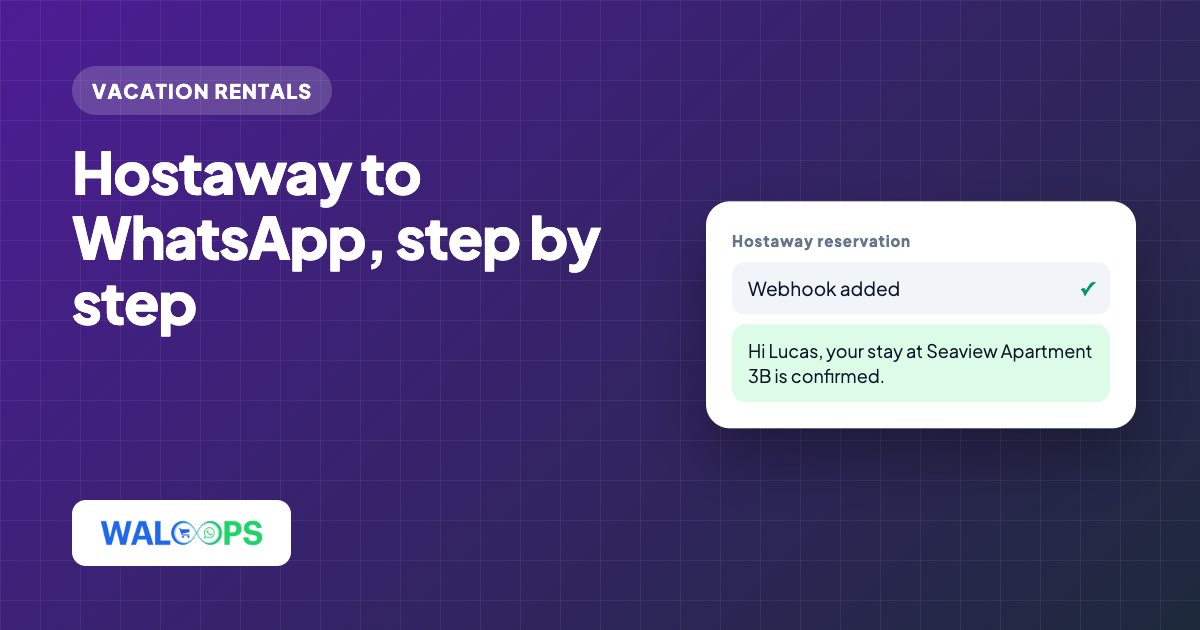
- Add the webhook in Hostaway. After saving, WALoops shows a webhook URL. Add it in Hostaway's webhook settings, or email [email protected] and ask them to add it for you.
- Click Activate. From now on, every reservation event Hostaway sends reaches WALoops.
- Create an automation. Choose Hostaway as the trigger, pick Reservation created or Reservation updated, and choose WhatsApp as the action with an approved message template.
- Test with a real booking. Create a test reservation with your own phone number as the guest's and check that the message arrives with every field filled in.
What you can use in your messages
Each Hostaway reservation gives you these fields to put in a template or use as a condition:
| Group | Fields |
|---|---|
| Guest | Name, phone, email |
| Reservation | Status, check-in, check-out, number of nights, number of guests, total and currency, booking channel |
| Property | Property name, address, city |
Hostaway's webhook carries the listing ID but not the property's name or address. WALoops looks the listing up through the Hostaway API each time, so you can still write "your stay at Seaview Apartment 3B" instead of a listing number.
Which Hostaway messages to send on WhatsApp
| Trigger | Condition | Message |
|---|---|---|
| Reservation created | Status is confirmed | Booking confirmation to the guest |
| Reservation created | None | New booking alert to your cleaner, co-host or owner |
| Reservation updated | Dates changed | Updated dates to the guest |
| Reservation updated | Status is cancelled | Cancellation notice to the guest and your team |
| Reservation created | Channel is Direct | A thank-you for booking direct |
Every message outside a guest's reply window has to be a template approved by Meta. Confirmations, changes and cancellations count as utility messages, the cheaper category. Here is a confirmation that usually passes review:
The template approval guide explains how to keep templates like this in the utility category.
Timing: what the automation can and can't do
Automations fire when Hostaway reports that a reservation was created or updated. You can add a delay, but it counts from that moment, not from the check-in date. So "send a confirmation 10 minutes after booking" works, while "send the door code two days before arrival" doesn't come from the booking event. For check-in-relative messages, keep using Hostaway's own scheduled messages and use WhatsApp for the booking-time ones and for replies.
Handle replies in one inbox
When a guest replies, the conversation opens in the WALoops shared inbox, where your whole team can answer from one number. You can turn on the AI agent to answer routine questions such as parking, Wi-Fi or early check-in from your own answers, and hand everything else to a person.
What it costs
WALoops plans start at $9.99 a month. Meta charges its own fee per template message, and WALoops adds no markup on it. Replies you send while a guest's 24-hour window is open are free of Meta fees.
For the other property management systems, see the WhatsApp guest messaging guide for vacation rentals. For a summary of the Hostaway connection, see the Hostaway WhatsApp integration page.