How to Check Your WhatsApp Business API Account Health (9 Checks)
The 9 checks that decide whether your WhatsApp API number can send: connection, verification, display name, payment, quality rating and limit.
 WALoops team
calendar_month
schedule4 min read
In this guide
- What should a WhatsApp account health check cover?
- Is my WhatsApp number allowed to send messages?
- Is my business verified, and does it matter?
- Is my display name approved?
- Is a payment method working?
- What is my quality rating and messaging limit?
- Are messages failing right now?
- When should I run a health check?
- How do I check WhatsApp account health in WALoops?
- A healthy WhatsApp Business API account has a connected number, a verified business, an approved display name, an approved account, a working payment method and a green quality rating.
- Most of this is in WhatsApp Manager and Business Settings in Meta Business Suite, spread across several pages.
- Check it before a big campaign or sale, and whenever messages start failing.
- WALoops shows all of it on one health card on the WhatsApp page.
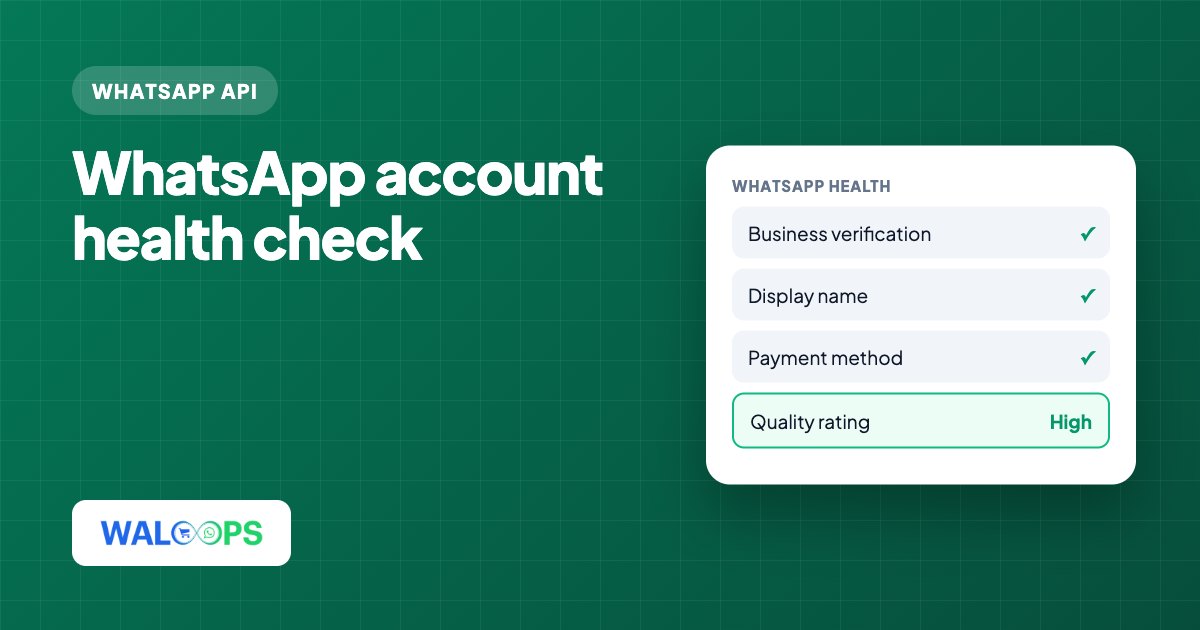
To check WhatsApp Business API account health, look at nine things: number connection, sending status, business verification, business profile, display name, account review, payment method, quality rating and messaging limit. Meta shows them across WhatsApp Manager, Security Centre and Billing. WALoops reads them from Meta and shows them on one health card, with a fix link for each problem.
What should a WhatsApp account health check cover?
These nine checks cover almost every reason messages fail or the account stops growing.
| Check | Healthy | Where Meta shows it |
|---|---|---|
| Connection | Connected | WhatsApp Manager > Phone numbers |
| Sending | Allowed | Phone number health status |
| Business verification | Verified | Business Settings > Security Centre |
| Business profile | Complete | WhatsApp Manager > Profile |
| Display name | Approved | WhatsApp Manager > Phone numbers |
| Account review | Approved | Business Support Home |
| Payment method | Added and working | Billing and payments |
| Quality rating | Green (high) | WhatsApp Manager > Phone numbers |
| Messaging limit | Above your daily need | WhatsApp Manager > Phone numbers |
Is my WhatsApp number allowed to send messages?
Check the sending status first: Meta reports whether the number, the WhatsApp account and the business can send messages, as available, limited or blocked, with its own description of each problem. If the number isn't connected at all, nothing else matters until it is.
See how to fix a disconnected or flagged number and what to do about a restricted account.
Is my business verified, and does it matter?
Yes, it matters: an unverified business stays at 250 customers a day for conversations you start, and the display name is harder to get approved. Verification is done in Security Centre in Meta Business Settings and usually takes a few days.
If it was rejected, see why Meta rejects business verification.
Is my display name approved?
The display name should show as approved in WhatsApp Manager. In review usually takes 1 to 3 days. Declined means Meta couldn't link it to your business.
See how to fix a rejected display name.
Is a payment method working?
Template messages, such as order updates, campaigns and login codes, need a payment method on the WhatsApp Business account. Meta doesn't share card details with apps, so check it in Billing and payments in Meta Business Suite. A missing or declined card makes paid messages fail with error 131042.
What is my quality rating and messaging limit?
The quality rating shows how customers reacted to your messages over the last 7 days; green is high. The messaging limit is how many different customers you can start a conversation with in 24 hours, from 250 up to unlimited. A low rating stops the limit from growing and can get templates paused.
- WhatsApp quality rating explained
- How to increase the WhatsApp messaging limit
- Why templates get paused or disabled
Are messages failing right now?
Look at your recent send failures by error code. A few failures are normal, for example numbers not on WhatsApp. A spike in one code points to one cause.
| Code | Usual cause |
|---|---|
| 131049 | Meta held back a marketing message to protect customers who get too many. Not charged. |
| 131042 | Payment problem on the WhatsApp account |
| 131026 | Message undeliverable, for example the number isn't on WhatsApp |
| 131047 | More than 24 hours since the customer's last message; a template is needed |
| 132015 | Template paused for low quality |
When should I run a health check?
Before any big send, such as a festive sale, and whenever customers say they didn't get an order update. A weekly look is enough for most stores. Problems like an expired card or a declined display name don't fix themselves, and they are easy to miss in Meta Business Suite.
How do I check WhatsApp account health in WALoops?
Open the WhatsApp page in your WALoops dashboard after connecting your own number. The health card reads your number and WhatsApp account from Meta and shows each check with a status: Connection, Sending, Business verification, Business profile, Display name, Account review, Payment method, Quality rating and Message limit. Problems are marked in red or yellow, with a button that opens the right page in Meta Business Suite. It also shows how many marketing messages Meta held back in the last 7 days. Results refresh every 30 minutes.
WALoops plans start at $9.99 a month, with no markup on Meta's message fees. See pricing, or the WhatsApp Business API setup guide.